
Beacon · School administrators
Find a booking and check the programme roster
Check who is attending, the included sessions and the current place and payment status.
Before you begin
You need programme access for the school. A family must have submitted a booking request.
Screen 1 of 3
Find the family’s confirmed booking
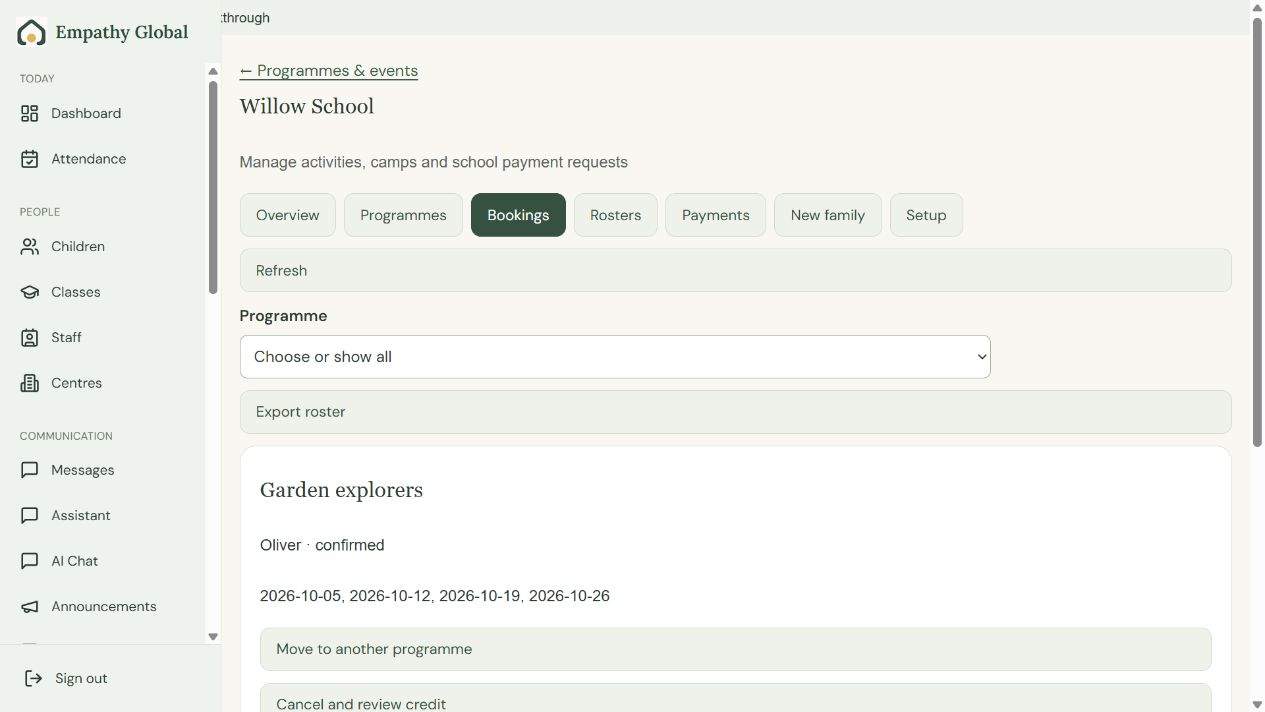
Find the booking
Open Bookings and choose the programme if needed.
Check the child and dates
Use View roster to see each session and its place status.
Screen 2 of 3
Check the child, session and place status
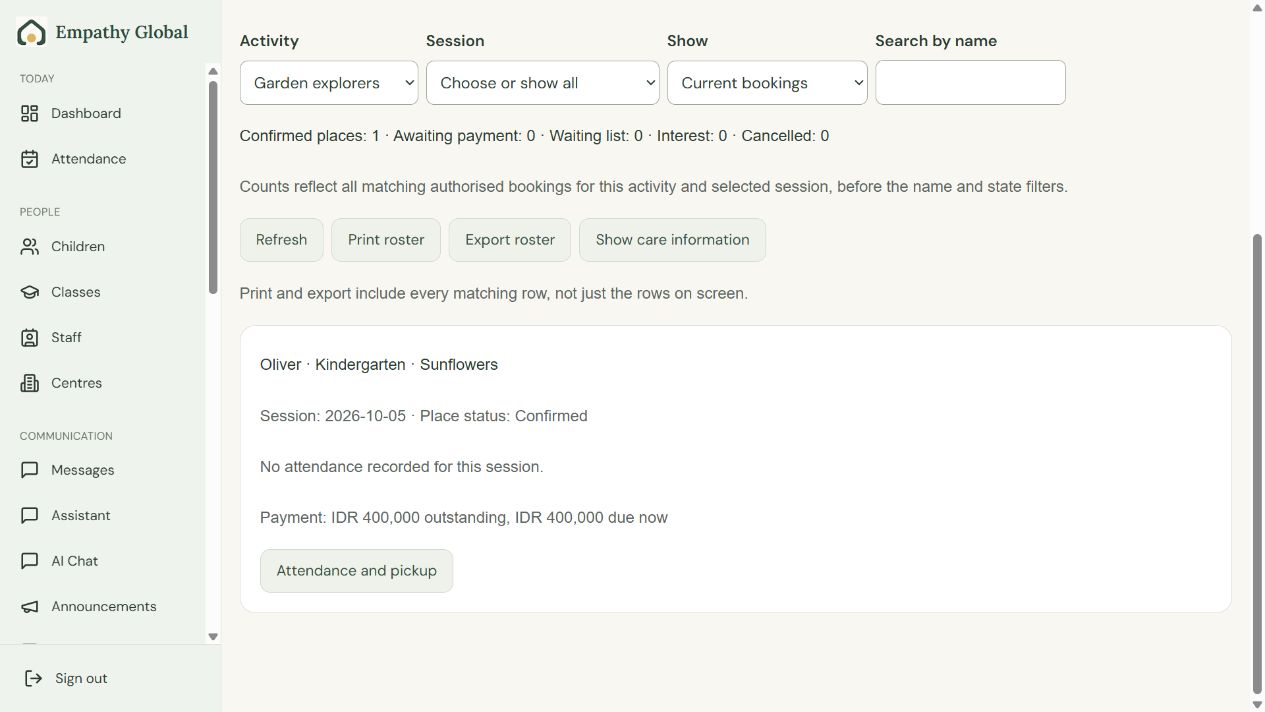
Choose the session
Filter by activity, session and booking state.
Check places and payment separately
The example child has a confirmed place with payment still outstanding.
Screen 3 of 3
Check My bookings for the actual place status
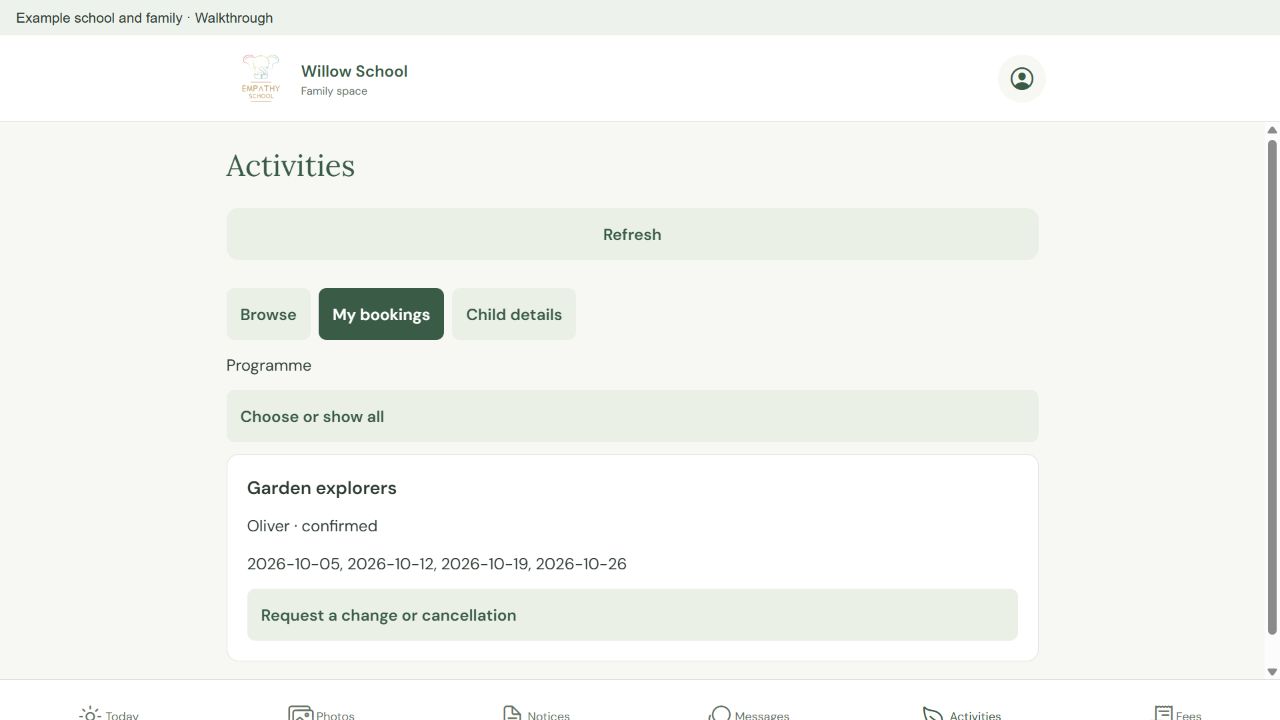
Open My bookings
Check the child, included dates and current place status.
Check Fees when payment is due
A confirmed place and a paid invoice are separate. Follow your school’s payment instructions.
Check the result
The school and family views identify the same child, dates and place status.
If something looks different
The programme does not appear
The school must enable programmes and publish the offer. Availability, dates and family eligibility can affect what appears. Ask the office to check the setup.
A family joins partway through the term
The full term price remains the default. The school must explicitly set any supported late-join price or arrange a reviewed adjustment. Do not assume automatic proration.
The place is awaiting payment
Read the place status and payment request separately. Follow the school’s instructions; paying outside the app does not by itself record a receipt.
Screens show released apps with example school and family records. Instructions checked 13 September 2026. Beacon: 13 September release; Parent 1.1.8; Teacher 2026.09.13.1.