
Empathy Global / ASK
available nowUnderstand the curriculum. Prepare to teach.
Make sense of the lesson, work through a teaching question and practise the words you want to use. ASK gives teachers curriculum guidance and a place to rehearse, with a separate everyday-support journey for parents.
For educators preparing their first lessons or bringing years of experience, and parents supporting learning at home. Current curriculum guidance focuses on preschool.
ASK teaching support
Explore support for understanding the available preschool curricula and preparing to teach.
Loading this player connects to YouTube. Playback starts only when you press play.
ASK for teachers
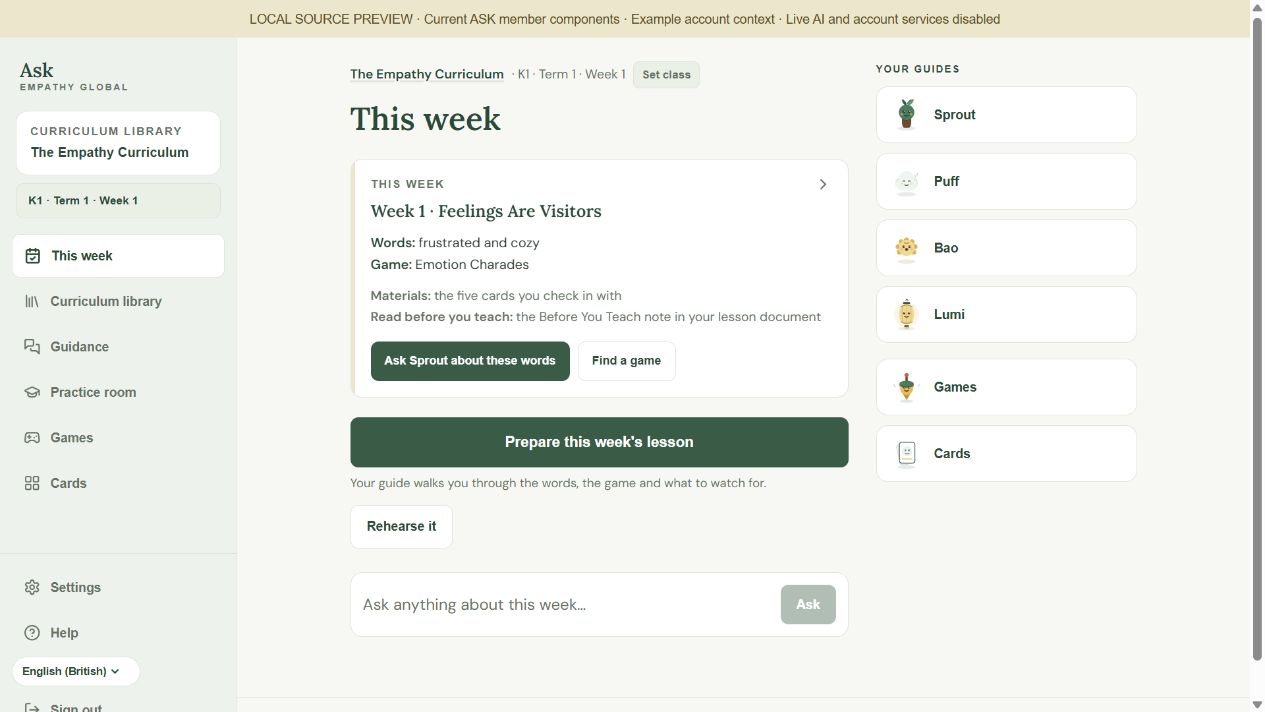
Prepare your Empathy Curriculum week, practise teaching and choose games and wordless cards.
ASK for parents
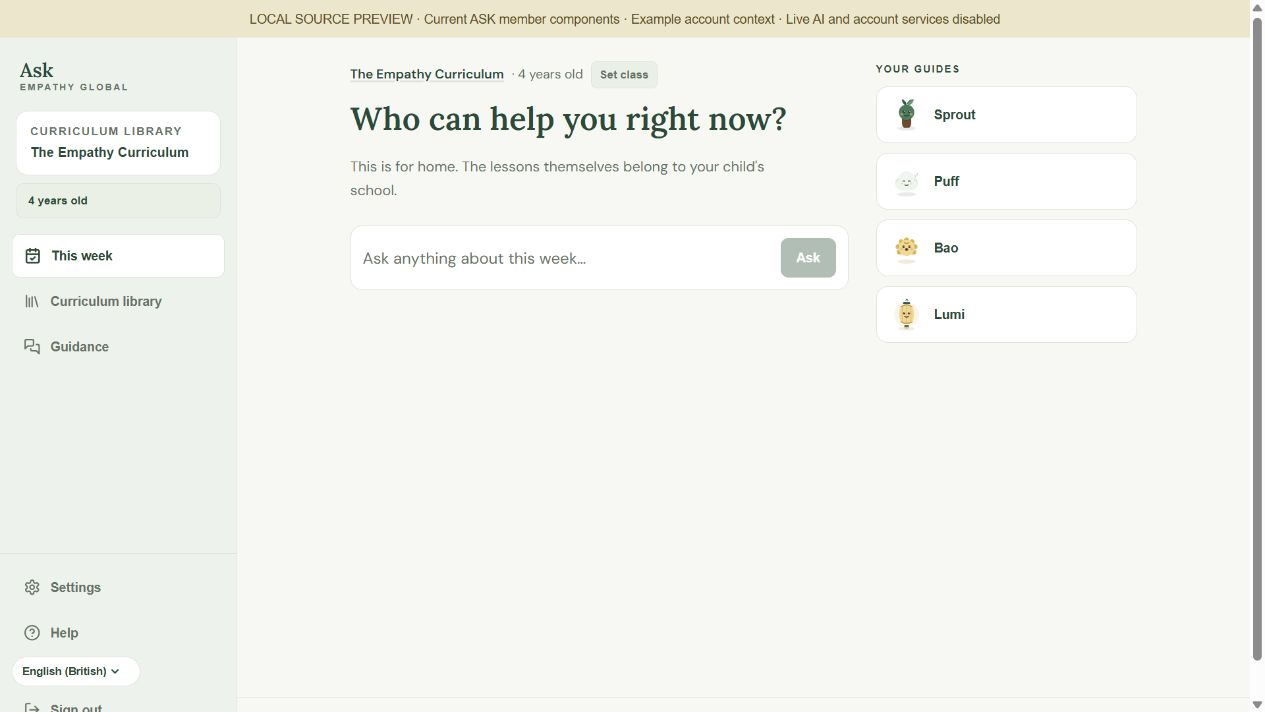
Find guidance for feelings and everyday family moments.
For school messages and daily updates, explore the Parent app. For classroom attendance and school communication, explore the Teacher app.
Shape the curriculum with Harness
Curriculum directors, founders, school leaders and educators can turn their ideas into a framework, choose a module, then develop its teaching guide and lessons. Review the work in Harness and export useful files. ASK supports the curricula available in ASK; exporting a draft does not automatically add it here.
What Ask does for a teacher
- Answers from your school's own curriculum and names the lesson each answer comes from.
- Rehearse in the practice room. Ask scores four teaching moves and suggests a better line when one misses.
- Photograph a textbook page and ask how to teach it.
- Tell Ask about your room: class size, grades, textbooks, printer. Every answer plans for that room.
- Eleven interface languages, and answers in the language you choose.
- Training hours, days in a row and certificates on your account.
- A confidence check every four weeks shows how you are growing.
- Safeguarding built in. Ask never diagnoses a child and gives clear steps if a child discloses harm.
- Share any answer with your staff group.
Choose the curriculum you use
Start in Curriculum library and follow the displayed access state. Teachers set their level, term and week. Parents choose their child’s age. The Empathy Curriculum has dedicated support; other available curricula keep their own guidance and access rules.
Find a useful starting point
New to the curriculum? Start with the original lesson and ask about its purpose or an unfamiliar teaching move. More experienced? Bring a specific question about your next lesson and use the guidance to think it through.
Prepare the week as a teacher
Read This week alongside the original lesson document and its Before You Teach note. Prepare this week’s lesson opens an editable question in Lumi. Review it and choose Send when you are ready.
Choose the guide for your question
Sprout helps with feeling words. Puff supports big feelings and the adult’s steadiness. Bao helps with getting along and repair. Lumi brings the programme together. Read any Source reference returned with the answer.
Rehearse a teaching move
Teachers can use Practice room with a fictional child to practise asking, describing and waiting. Read the feedback to reflect on your teaching words.
Prepare Games and wordless Cards
Eligible Empathy teachers can filter Games by term and teaching moment, then read the instructions in the list. On Cards, choose up to five wordless images and keep the shelf open while preparing. The images have no fixed feeling meanings.
Bring useful words into everyday family life
Parents use the four guides for ordinary home moments. Ask one focused question, try a true feeling word about yourself, or invite your child to describe their own feelings. The parent journey has its own age context and guidance.
Your first steps
- Choose the teacher or parent walkthrough for your role.
- Open the curriculum available to your school-connected account.
- Check your class or age context.
- Choose one useful preparation or everyday-guidance task.
Questions about ASK
Is ASK only for new teachers?
No. New teachers can work through the lesson and rehearse a first teaching move. Experienced educators can ask focused questions and reflect on their teaching. ASK’s guidance supports your judgement.
How do teacher and parent modes differ?
Teachers use level, term and week for lesson preparation, with teacher Practice room and eligible Empathy Games and Cards. Parents use their child’s age and everyday guidance.
Does choosing a curriculum give me access?
The app shows the access and availability for your account. Choosing a listing does not grant lesson access.
Does Prepare this week’s lesson send my question?
It opens an editable question in Lumi. Read or change it, then choose Send. Use your original lesson document for the complete session.
Can I download the wordless card deck from Cards?
The current shelf lets eligible teachers choose up to five cards together. Keep it open while preparing; the selection clears when the shelf reloads.
Are all resources translated?
Choose an interface language in Settings. Game names and instructions currently remain in English.
How does a family code work?
In Settings, choose Enter a code from your school, enter the code and choose Open. Follow the result shown, then use Done when access is confirmed.
How does Harness fit with ASK?
Harness is for creating and reviewing your own curriculum, teaching guides and lesson drafts. ASK supports preparation and practice with curricula available in ASK. A saved Harness draft is not automatically published there.
Detailed guides for ASK
Choose your ASK guide
Teachers prepare the curriculum. Parents find everyday guidance for home.
Step-by-step guide →Choose or change your ASK curriculum
Start with the curriculum your class or family is using.
Step-by-step guide →Ask the right guide a focused question
Choose a guide and ask about the teaching or everyday moment in front of you.
Step-by-step guide →Practise asking, describing and waiting
Rehearse a small teaching move before using it in class.
Step-by-step guide →Find an Empathy game for your teaching moment
Read the game instructions and prepare an activity for your class.
Step-by-step guide →Choose five wordless cards for your check-in
Keep the cards you are preparing together on the shelf.
Step-by-step guide →Connect your family account to ASK
Use the school code provided for your own family account.
Step-by-step guide →Make ASK comfortable to use
Check your account context, language and display preferences.
Step-by-step guide →Prepare your first Empathy week in ASK
Check the week, choose a guide and prepare one useful teaching move.
Step-by-step guide →Bring feeling words into your day with ASK
Find one small, useful way to support feelings in everyday family life.
Step-by-step guide →Understand a lesson and practise teaching it
Use the original lesson, a focused question and a short rehearsal to prepare.
Step-by-step guide →