
Empathy Global / Beacon
available nowKeep the school day and the school records together.
Beacon brings the office work of a preschool into one place: children and classes, attendance, family communication, admissions, activities and money. It also gives schools tools for camps and after-school programmes.
For school administrators, principals and leadership teams using school-authorised office accounts.
Beacon school administration
See how Beacon brings attendance, school records, admissions and billing into one place.
Loading this player connects to YouTube. Playback starts only when you press play.
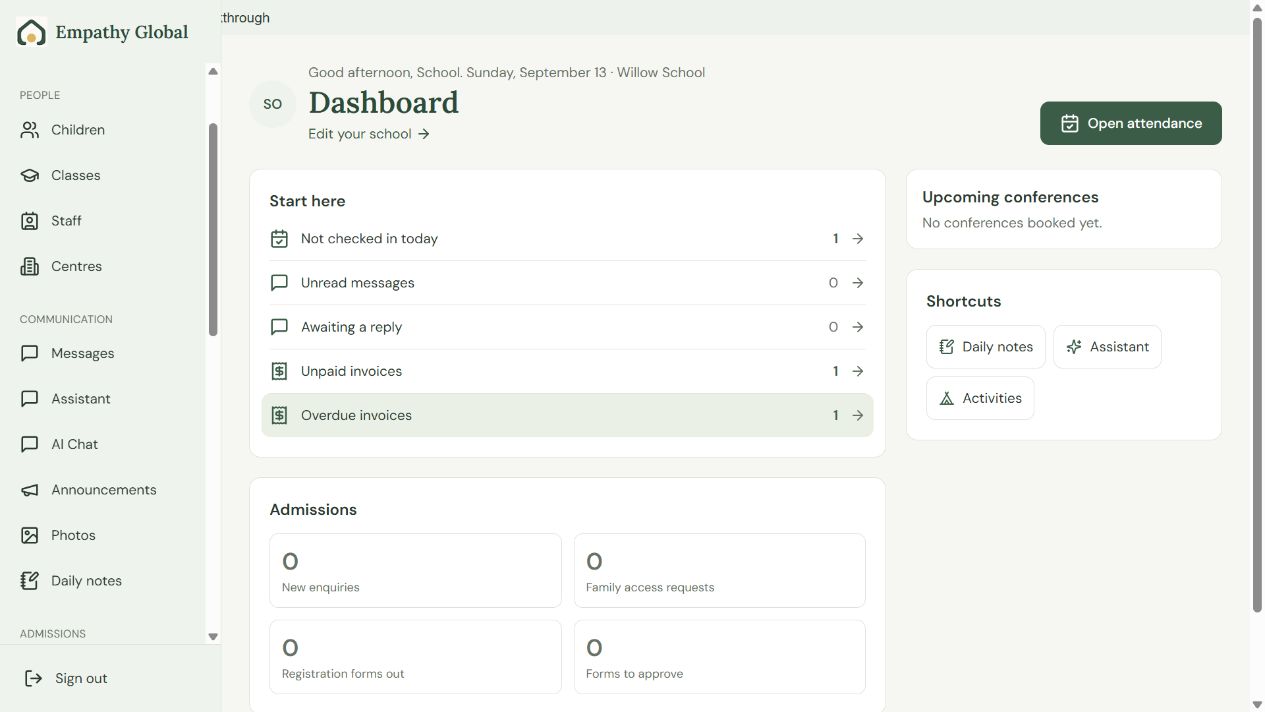
Review attendance, school accounts and reports.
Choose what you need to do
Get started with Beacon
Find your school’s next task and connect the people who need access.
3 screens · Follow the guide →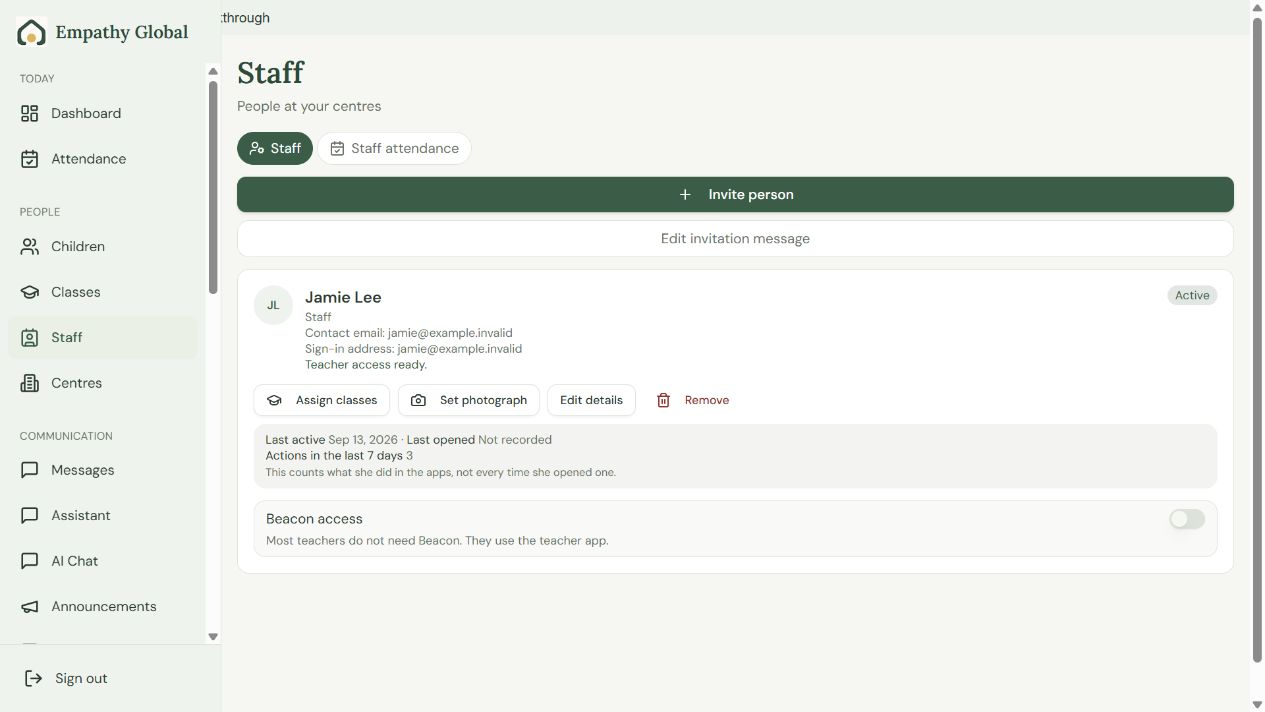
Invite teachers and assign classes in Beacon
Connect the right account, choose its school role and check the teacher can open the assigned class.
5 screens · Follow the guide →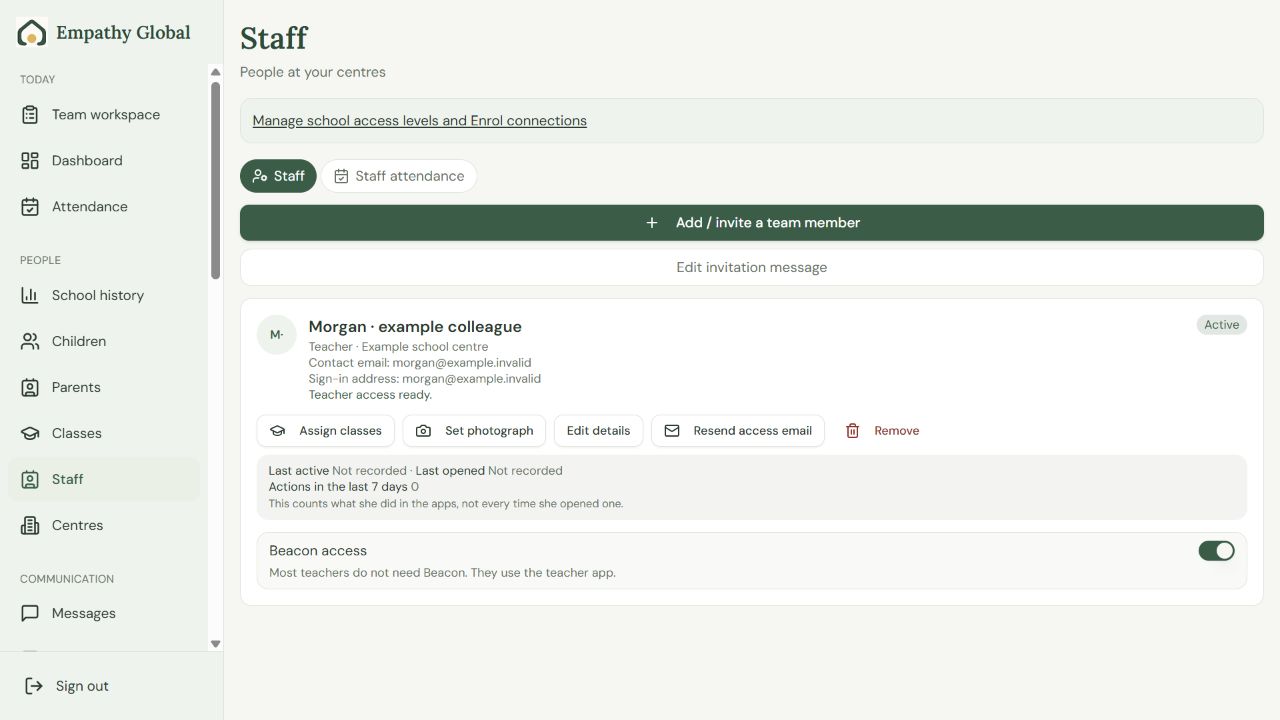
Staff roles and permissions
Choose the right school access for each colleague, then follow the screens to assign it.
3 screens · Follow the guide →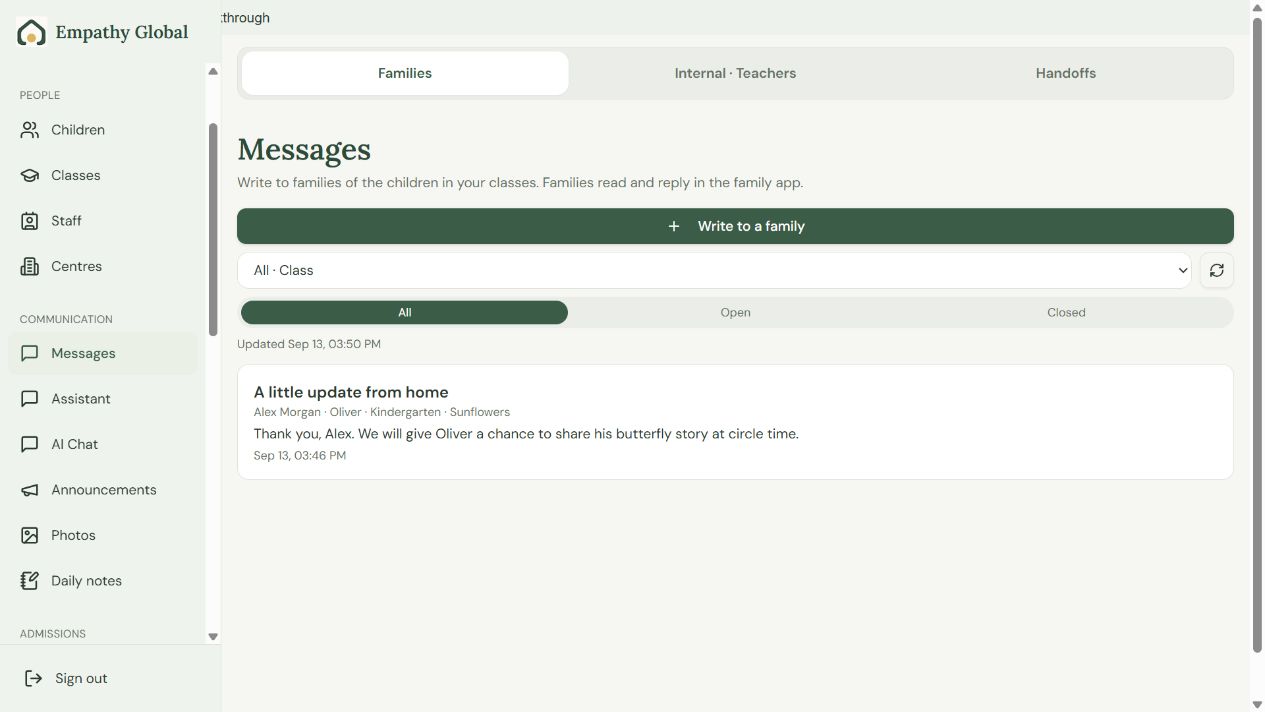
Follow a family conversation across the apps
See the same family question and teacher reply in Beacon, Teacher and Parent.
6 screens · Follow the guide →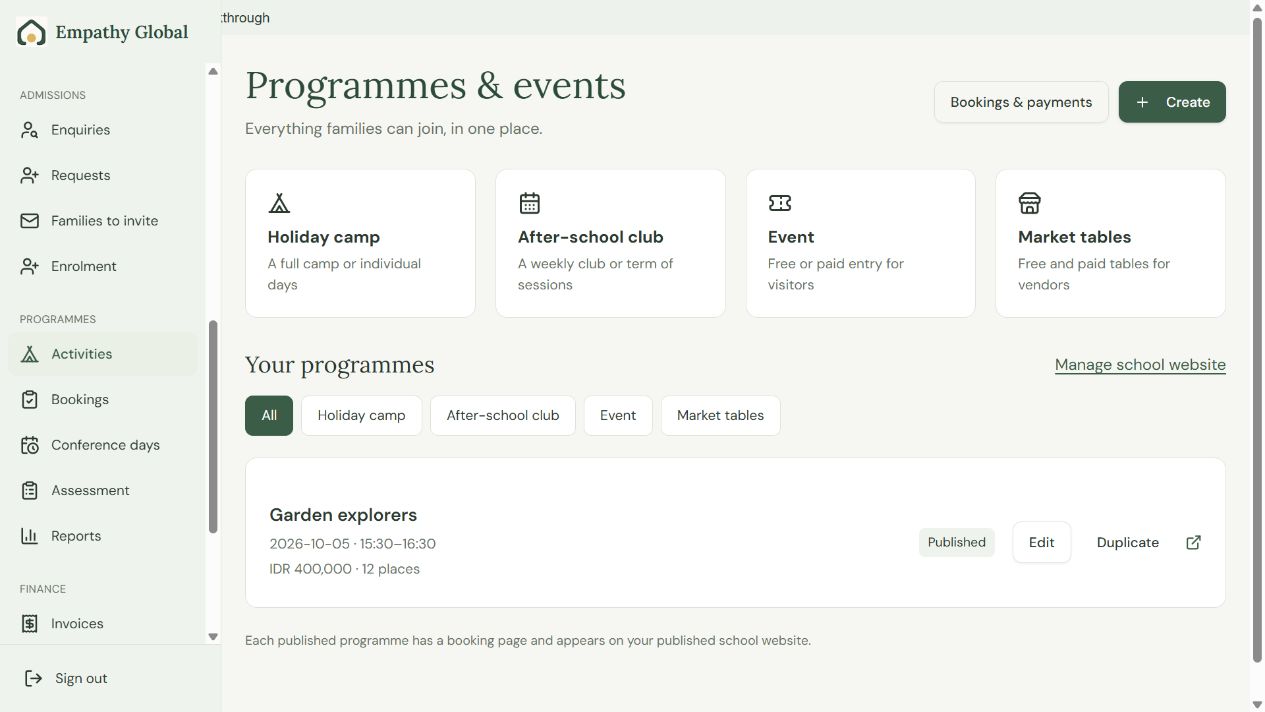
Create an after-school programme and take a booking
Set up an offer, follow an existing family’s booking and find the child on the school roster.
13 screens · Follow the guide →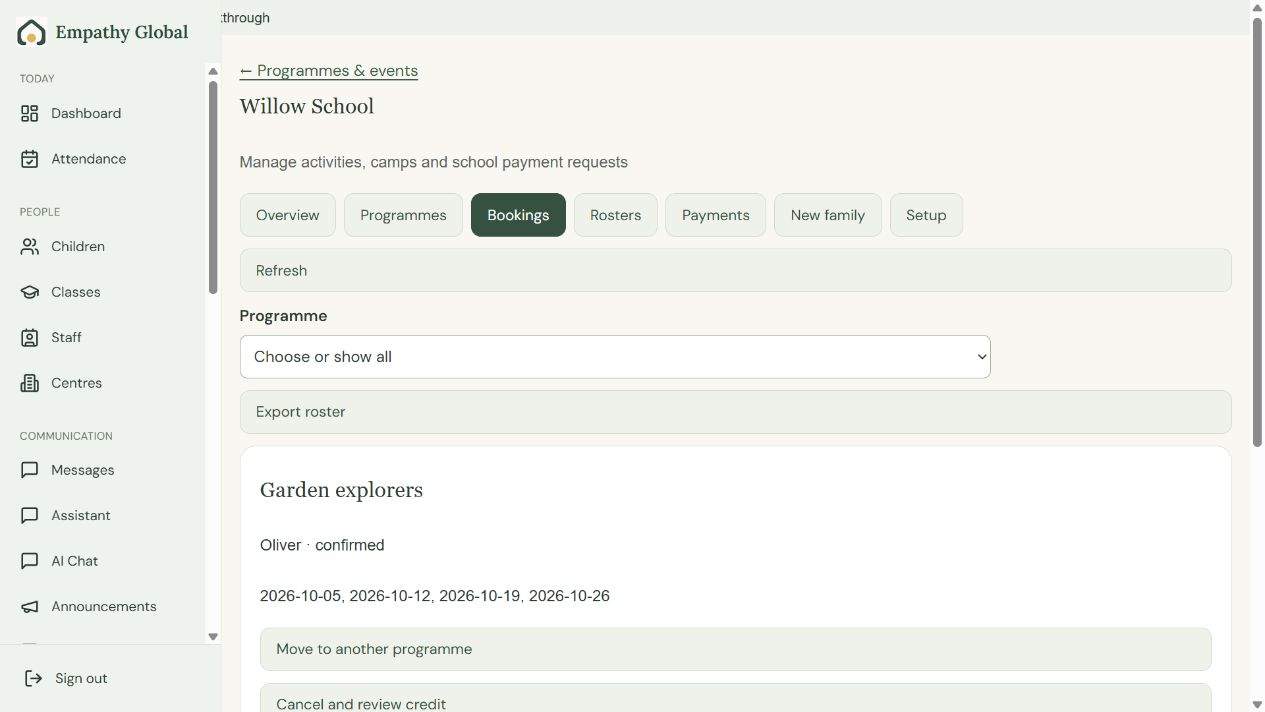
Find a booking and check the programme roster
Check who is attending, the included sessions and the current place and payment status.
3 screens · Follow the guide →Know the children and the places they belong
Keep child profiles, guardian contacts, enrolments, classes and centres organised. Open a child’s record when you need its details and work within the school and centre you are responsible for. Staff roles control which areas appear.
See how this works →Make the daily record easier to follow
Record attendance, write daily notes, share class photographs where consent permits, and publish announcements or documents. Messages keep conversations connected to the people involved. Families and teachers use the access route provided by their school.
See how this works →Follow a family from interest to enrolment
Review enquiries and requests, arrange the next step, invite families and complete enrolment records. A clear account of what happened helps the office avoid losing a conversation or creating another copy of a family.
See how this works →Run programmes with real dates and places
Set up after-school activities, camps and short programmes with session dates, eligibility, capacity and pricing. Manage bookings and waiting lists, review the roster, and provide families with a registration route. Confirmation rules can depend on the school’s payment policy.
See how this works →Keep charges and money received distinct
Create and review invoices, record money received, issue credits and review balances. The finance tools include transactions, deposits, statements and period controls. Online checkout depends on a configured payment account; recording a refund documents money already returned through the provider or bank.
See how this works →Arrange conferences and share learning
Set up conference days and appointment availability, and review bookings against the school schedule. Use assessment records and reports to document learning and communicate with families. These records support professional judgement; they do not replace it.
See how this works →Prepare a message or printable with help
Assistant offers Saved messages, Help me write and Plan or explain. Review the result and any required Review status before using it. Make a printable supports small classroom materials. Available tools follow the school’s configuration.
See how this works →Learn the tools and maintain the school
Test examples support Attendance, Children, Classes, Daily notes and Photos. Use School profile, Centres and Settings for their separate tasks, and Website for the school’s public information.
See how this works →Your first steps
- Open Dashboard and check Start here.
- Review the class, date or conversation that needs attention.
- Give an interested or joining family a clear next step.
- Use Fees and Programmes → Reports to review the school’s records.
Questions about Beacon
Who is Beacon for?
Beacon’s office tools are for authorised school administrators and leadership teams. Teachers and parents use their separate school apps.
Can I use Beacon today?
Yes. Beacon is already used in schools. Sign in through your school’s account, or contact the team to arrange school access.
Where can I practise?
Test examples support Attendance, Children, Classes, Daily notes and Photos. Use Settings → Test examples to open them.
Where are attendance and finance reports?
Attendance reports are under Programmes → Reports. School finance reports are under Fees → Reports.
Does recording a refund send money?
Record refund already sent records money returned through the bank or provider. It does not carry out that transfer.
Detailed guides for Beacon
Get started with Beacon
Find your school’s next task and connect the people who need access.
Step-by-step guide →Learn with test examples
Try a supported task in isolated examples before returning to your real school.
Step-by-step guide →Add a child and review their profile
Keep the child’s school information in the correct place.
Step-by-step guide →Set up a class
Organise children and staff around the class they attend.
Step-by-step guide →Record arrivals and departures
Keep an accurate attendance record for the selected class and day.
Step-by-step guide →Write a daily note
Share a clear account of the child’s day.
Step-by-step guide →Share a class photograph
Choose the audience and check permission before posting.
Step-by-step guide →Send a school announcement
Share a message with the intended families.
Step-by-step guide →Follow a family conversation across the apps
See the same family question and teacher reply in Beacon, Teacher and Parent.
Step-by-step guide →Prepare a message with the Assistant
Use a common message or get help turning notes into a draft.
Step-by-step guide →Prepare a classroom printable
Create a material for a generic teaching topic.
Step-by-step guide →Give an admissions enquiry a next step
Record the next action for an interested family.
Step-by-step guide →Review a family access request
Match the requesting adult to the family record the school already holds.
Step-by-step guide →Invite families to their school account
Give the right adult a route to their existing family records.
Step-by-step guide →Review a family’s registration
Review the registration form and the school’s part before approving a place.
Step-by-step guide →Create an after-school programme and take a booking
Set up an offer, follow an existing family’s booking and find the child on the school roster.
Step-by-step guide →Find a booking and check the programme roster
Check who is attending, the included sessions and the current place and payment status.
Step-by-step guide →See how families book a programme
The Parent guide shows the family’s programme journey.
Step-by-step guide →Record programme payments credits and refunds
Keep programme charges and money movements consistent.
Step-by-step guide →Issue and review a tuition invoice
Create a charge for an enrolled child.
Step-by-step guide →Set fees discounts and monthly billing
Prepare recurring charges and review a billing run before creating invoices.
Step-by-step guide →Review balances statements and finance reports
Understand what a family owes and what has been received.
Step-by-step guide →Choose the right finance correction
Preserve the transaction history when an amount needs correction.
Step-by-step guide →Set up a family conference window
Create appointment availability for the intended teacher and class.
Step-by-step guide →Record learning observations and reports
Use the school’s assessment structure to document observed learning.
Step-by-step guide →Review attendance for your school
Review attendance patterns for a month or child.
Step-by-step guide →Invite teachers and assign classes in Beacon
Connect the right account, choose its school role and check the teacher can open the assigned class.
Step-by-step guide →Staff roles and permissions
Choose the right school access for each colleague, then follow the screens to assign it.
Step-by-step guide →Maintain centres and account preferences
Keep centre information and personal settings in their proper places.
Step-by-step guide →Publish the school website
Prepare the public information families should see.
Step-by-step guide →Set up a programme registration website
Give families a focused registration page for a centre or programme.
Step-by-step guide →Recover access to your school account
Reset a password and follow the correct office, teacher or family destination.
Step-by-step guide →Publish a document for families
Share a reviewed school document with the right audience.
Step-by-step guide →Change an existing child enrolment
Update the school place already recorded for a child.
Step-by-step guide →Review a programme roster
Find the children expected at a programme session.
Step-by-step guide →Offer an available programme place
Review the waiting list and the conditions for a place.
Step-by-step guide →Update the school profile in Beacon
Keep the school identity and contact information current.
Step-by-step guide →Check your school’s payment setup
Review the supported provider and its readiness for the school.
Step-by-step guide →