
Beacon · School administrators
Get started with Beacon
Find your school’s next task and connect the people who need access.
Before you begin
Sign in to the school account with the access your school has assigned.
Screen 1 of 3
Find your school’s next task
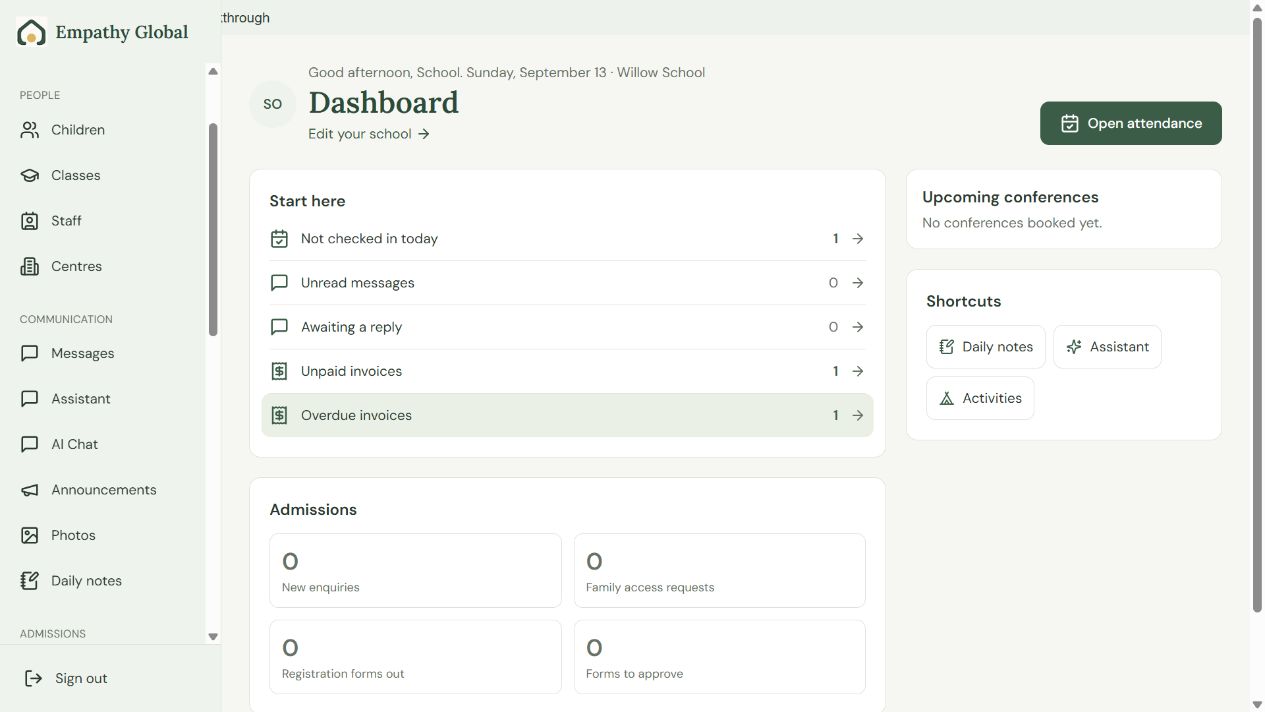
Check the school
Use the dashboard’s school name to confirm where you are working.
Choose a useful next task
Start here leads to attendance, messages and payment follow-up.
Screen 2 of 3
Check account access separately from the staff record
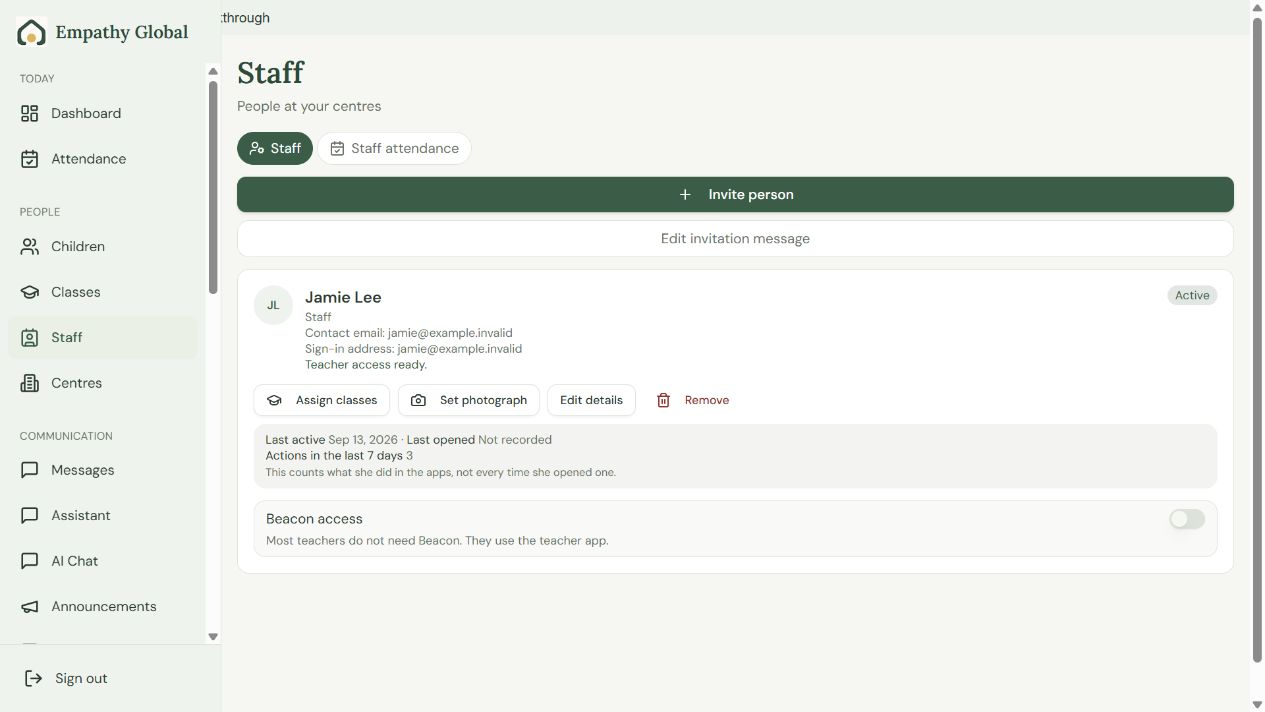
Check the existing person first
Read Contact email, Sign-in address and the access status before inviting again.
Assign the right classes
Use Assign classes. Teacher app access and Beacon access are separate choices.
Screen 3 of 3
Open your assigned classroom
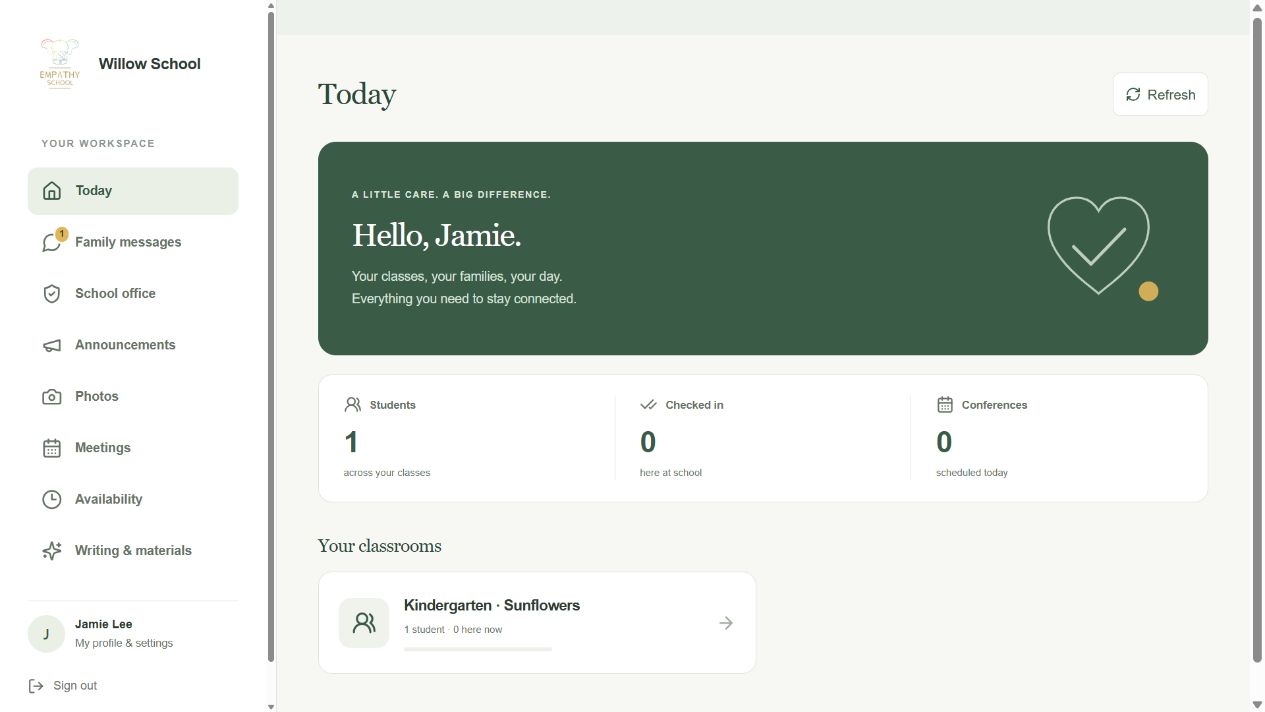
Check your school
Your school name and your own profile should appear.
Open your assigned class
Choose a class in Today to see its children and attendance.
Check the result
You can identify the correct school and your staff know which app and classes to use.
If something looks different
My child or class is missing
Check the school and sign-in email first. Ask the school office to check the family link or staff class assignment. Creating another account will not correct an assignment.
I am both a parent and a teacher
Open Parent for your own family and Teacher for your assigned classes. Ask the office to connect both roles to the appropriate account; one role does not automatically grant the other.
Screens show released apps with example school and family records. Instructions checked 13 September 2026. Beacon: 13 September release; Parent 1.1.8; Teacher 2026.09.13.1.