
Beacon · School administrators and IT leads
Staff roles and permissions
Choose the right school access for each colleague, then follow the screens to assign it.
Before you begin
Sign in with your own School administrator account for the correct school. For an IT lead who needs full school control, choose School administrator. Job titles and departments do not grant permissions.
Screen 1 of 3
Find staff setup
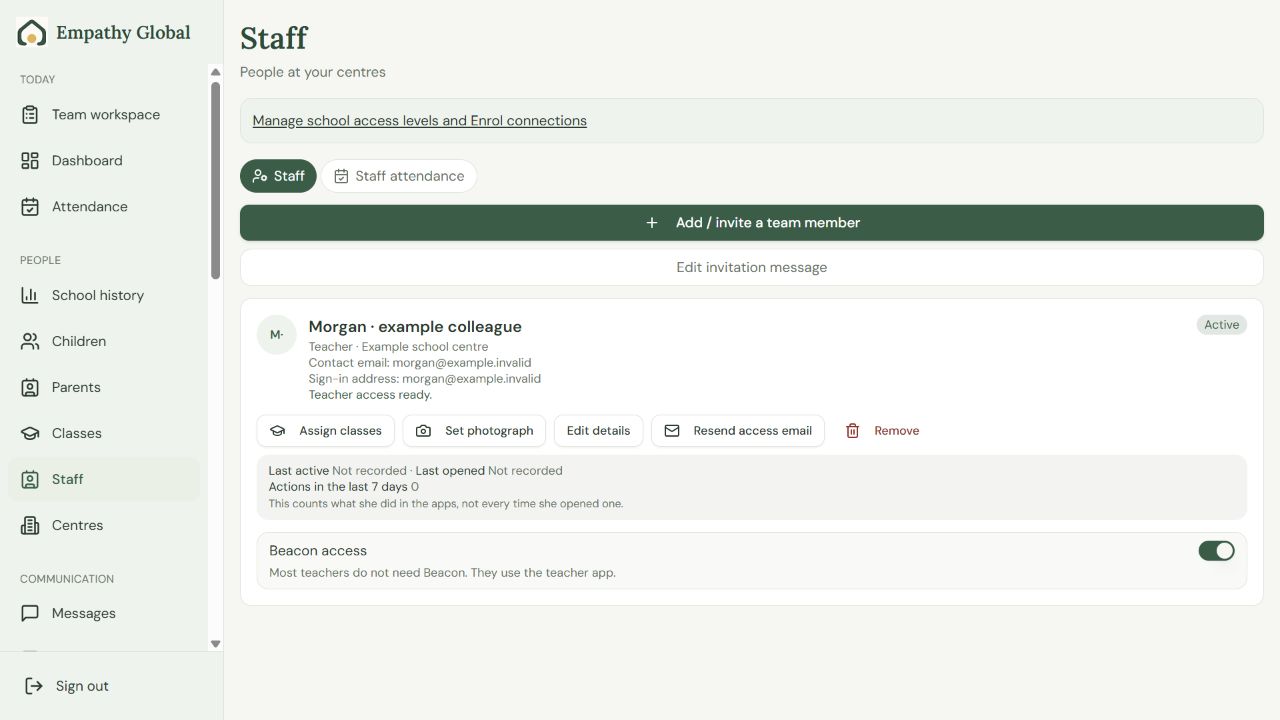
Open Staff
Under People, choose Staff. On a phone, open All tools to find Staff.
Open access settings
Choose Manage school access levels and Enrol connections to open Team workspace.
Screen 2 of 3
Assign an existing colleague’s access
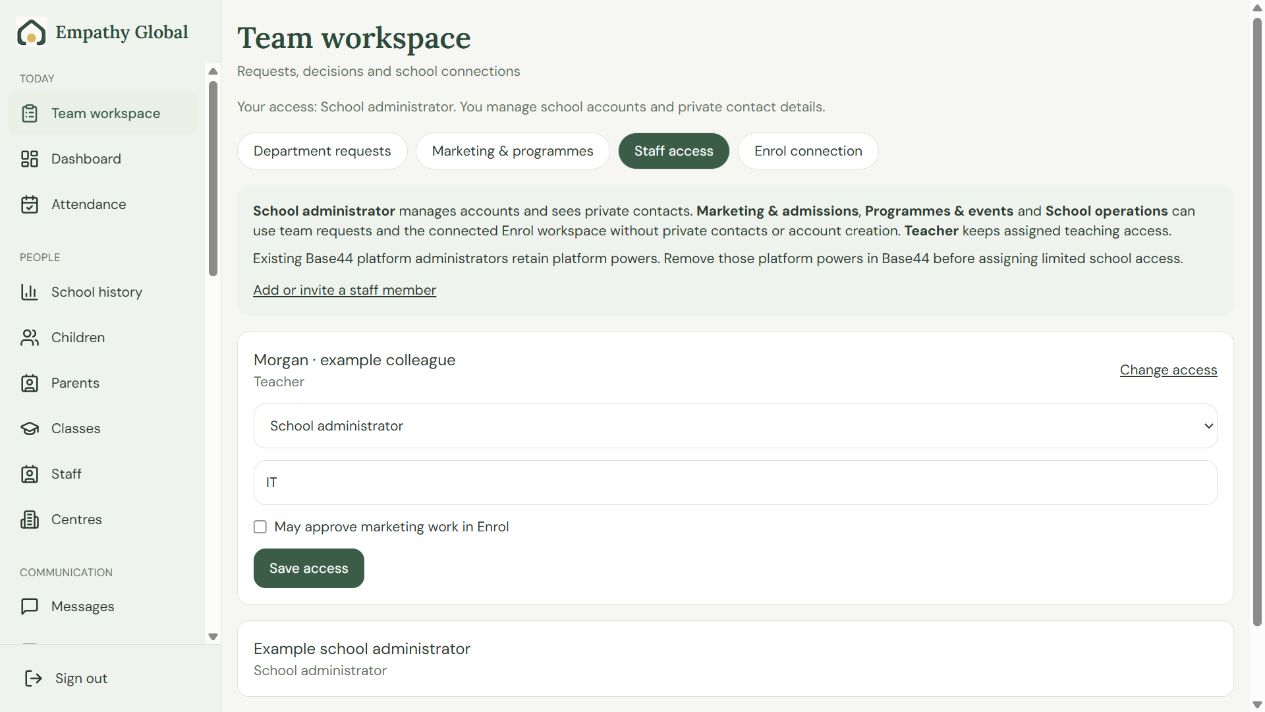
Choose the colleague
Open Staff access, then Change access beside the person. You cannot change your own role here.
Choose the Access profile
For full school IT responsibilities, select School administrator. Department can say IT; the profile grants access.
Review and save
Check May approve marketing work in Enrol deliberately, then choose Save access. Read the returned result.
Screen 3 of 3
If the colleague is new, start an invitation
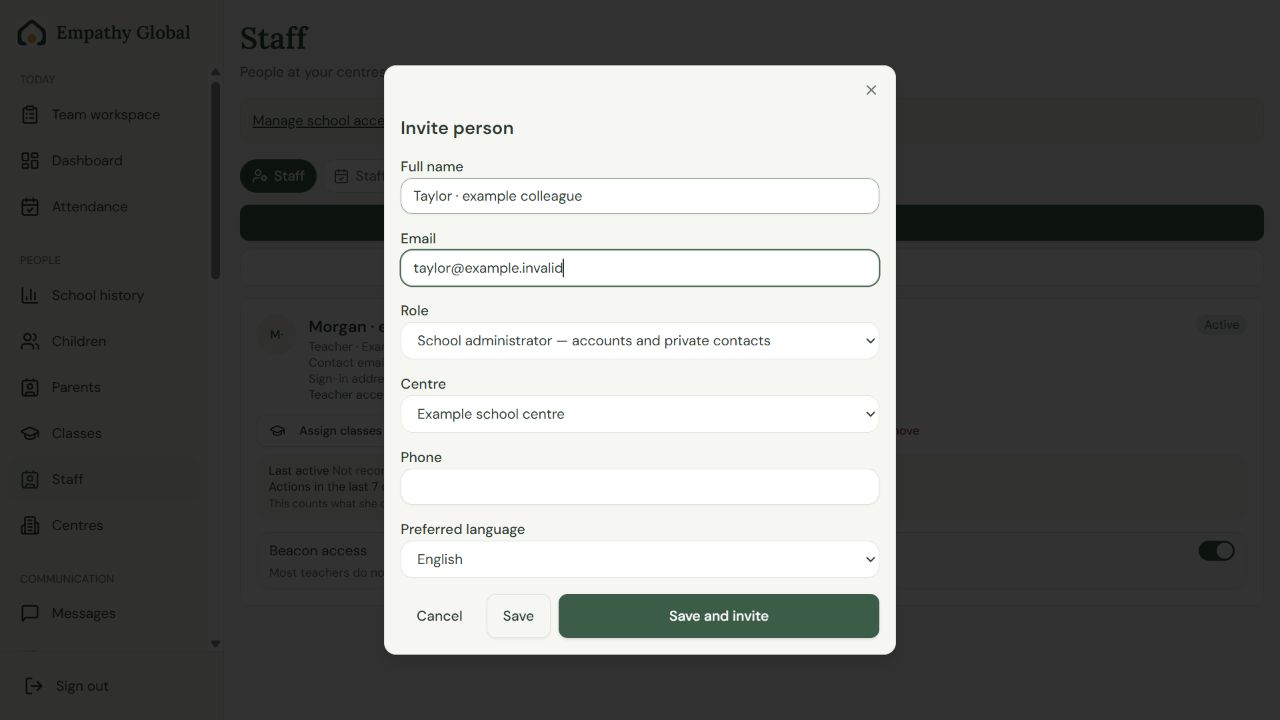
Add the person and role
From Staff, choose Add / invite a team member. Enter their own sign-in email, Role and Centre.
Choose the intended action
Save keeps the staff record. Save and invite starts account setup; check its status and ask the person to finish the invitation.
Choose the role that matches the work
The three limited team profiles currently share the same Team workspace permissions. Choose their label to reflect the colleague’s responsibilities.
| Role | Available work | Access boundary |
|---|---|---|
| School administrator | School operations; parent and staff accounts; role assignment; the private contact directory; programmes, bookings, finance, settings and the school website. Can approve team work. | Highest school-level role. It does not grant other-school access, Base44 developer-console access, or blanket access to everyone’s private notes and AI conversations. |
| Marketing & admissions | Team requests and replies, AI Chat and settings. Enrol work requires a separately verified connection and authorised access. | No account or permission management, school-wide private contact directory or full finance. Marketing approval is a separate permission. |
| Programmes & events | The same limited Team workspace, AI Chat and settings. Assigned programme attendance is a separate teaching capability. | This profile does not grant programme creation, price/capacity changes, booking administration or payment administration. |
| School operations | The same limited Team workspace, AI Chat and settings for internal requests and decisions. | It is not School administrator. No account/permission management, school-wide private contact directory or full office administration. |
| Teacher | Assigned children and classes; attendance, daily notes and photos; authorised messages and conferences; school-enabled Assistant. Assigned programme rosters and attendance where applicable. | No unrelated children or full office administration. Necessary authorised child/emergency information is different from access to the school-wide contact directory. |
| Platform owner / super admin | Empathy Global platform responsibilities, including a selected-school administrator context where authorised. | A separate platform authority, not a staff job title. This school role selector cannot appoint platform owners. |
School administrator
- Available work
- School operations; parent and staff accounts; role assignment; the private contact directory; programmes, bookings, finance, settings and the school website. Can approve team work.
- Access boundary
- Highest school-level role. It does not grant other-school access, Base44 developer-console access, or blanket access to everyone’s private notes and AI conversations.
Marketing & admissions
- Available work
- Team requests and replies, AI Chat and settings. Enrol work requires a separately verified connection and authorised access.
- Access boundary
- No account or permission management, school-wide private contact directory or full finance. Marketing approval is a separate permission.
Programmes & events
- Available work
- The same limited Team workspace, AI Chat and settings. Assigned programme attendance is a separate teaching capability.
- Access boundary
- This profile does not grant programme creation, price/capacity changes, booking administration or payment administration.
School operations
- Available work
- The same limited Team workspace, AI Chat and settings for internal requests and decisions.
- Access boundary
- It is not School administrator. No account/permission management, school-wide private contact directory or full office administration.
Teacher
- Available work
- Assigned children and classes; attendance, daily notes and photos; authorised messages and conferences; school-enabled Assistant. Assigned programme rosters and attendance where applicable.
- Access boundary
- No unrelated children or full office administration. Necessary authorised child/emergency information is different from access to the school-wide contact directory.
Platform owner / super admin
- Available work
- Empathy Global platform responsibilities, including a selected-school administrator context where authorised.
- Access boundary
- A separate platform authority, not a staff job title. This school role selector cannot appoint platform owners.
Examples for choosing a role
- An IT lead who must manage school accounts, permissions and school settings: School administrator.
- A marketing colleague preparing enquiries and campaigns: Marketing & admissions, plus the required Enrol account connection. Enable approval only if they should approve marketing work.
- An events colleague coordinating requests and colleagues: Programmes & events. A school administrator still handles programme creation, fees, capacity, bookings and payments.
- An office colleague coordinating internal requests without broad administrative control: School operations.
- A classroom educator working with assigned children: Teacher, with the appropriate class assignments and app access.
Team work and programme attendance
Limited team profiles can create department requests. They can respond when they are the responsible colleague or the request is unassigned; school administrators can respond across the school’s team requests. Full office routes redirect limited profiles to Team workspace.
Approval is separate from a department or job title. The Staff access checkbox May approve marketing work in Enrol controls that additional permission; school administrators can approve. Review the checkbox whenever you save access.
Assigned programme rosters and attendance follow verified teaching membership and programme assignment. They do not grant programme management. The Programmes & events label alone does not open full programme, booking or payment administration.
Check each linked app
Every colleague uses their own account. A staff record, a school role and access to a linked app are separate parts of setup.
Most classroom teachers use Teacher. Assign their classes and check the intended Teacher account. Beacon access is a separate school-controlled choice; school administrators have it enabled.
Enrol needs its own verified account linkage and an authorised role. A school administrator uses Team workspace → Enrol connection for the verified identity link. Sending also requires configured delivery channels; assigning a role does not enable email or WhatsApp delivery.
ASK and Parent retain their own verified access routes. A Beacon job title does not automatically grant another app’s role or curriculum licence.
Keep school and platform authority separate
School administrator controls the school. Platform owner/super admin is an Empathy Global authority. Base44 native administrator and developer-console permissions are another, separate layer.
Changing a school profile does not remove existing Base44 native administrator powers. A person with those powers must have them reviewed separately before receiving limited school access.
Beacon protects platform-owner memberships and the last school administrator. Arrange another authorised school administrator before reducing that final school role; the screen also prevents changing your own role.
Check the result
The colleague’s saved Access profile matches their responsibilities. Ask them to sign in with their own account and check the correct school and tools. Verify linked apps separately.
If something looks different
Staff access is missing
Ask a School administrator to manage the change. Limited team profiles cannot assign permissions. Confirm the correct school and account.
Programmes & events cannot edit prices or bookings
That is the current role boundary. A School administrator carries out those administrative tasks. Programme assignment can separately permit roster attendance.
I cannot reduce an administrator’s access
The screen prevents self-changes, protects platform-owner memberships and keeps a final school administrator. Existing Base44 native administrator powers also need separate review.
The invitation or linked app is not ready
Check the saved account status and intended sign-in email. Finish verification and the required app connection. A saved staff record is not proof of completed signup or delivered email.
Screens show the current Beacon interface with demonstration staff, captured locally. Instructions checked 17 September 2026. Permission guidance checked against the 16 September 2026 Beacon release.