
Beacon · School administrators
Create an after-school programme and take a booking
Set up an offer, follow an existing family’s booking and find the child on the school roster.
Before you begin
Confirm programme access and payment instructions in Bookings → Setup. Decide eligibility, capacity, included dates, price and when places are confirmed. This example school allows existing families to book; opening registration to new families is a separate school choice.
Screen 1 of 13
Choose the kind of programme
Choose the programme type
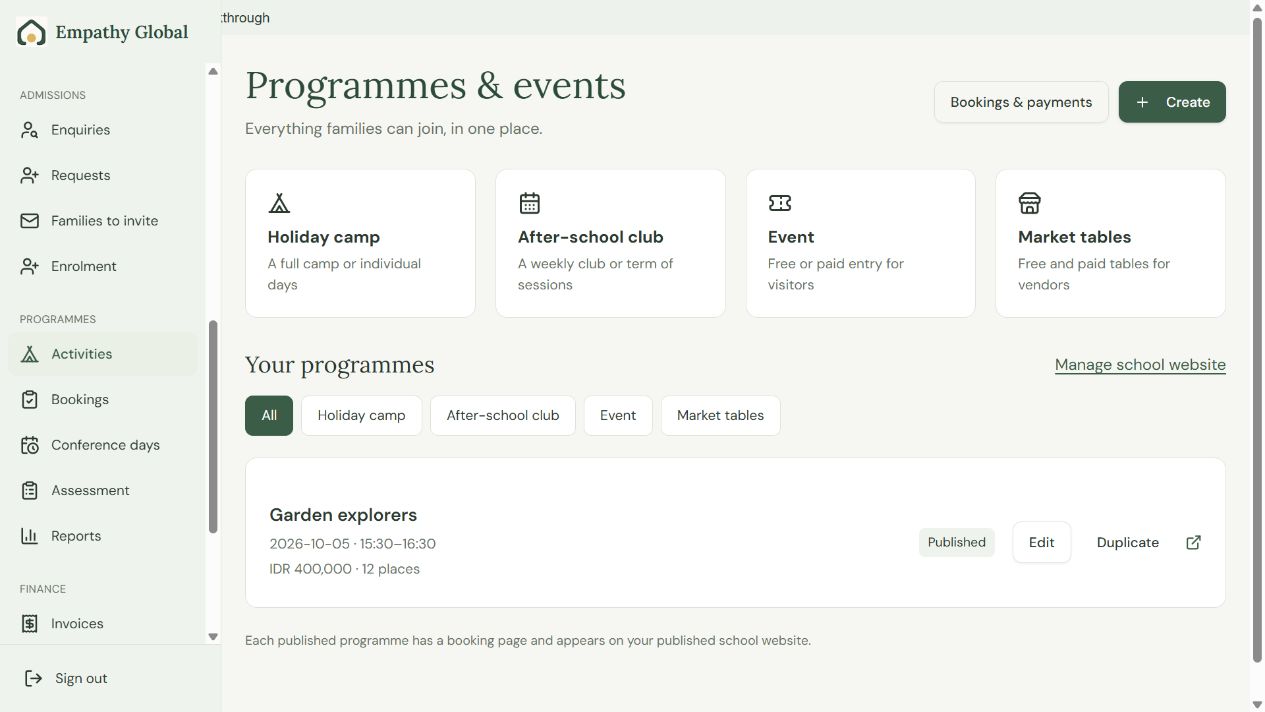
Open Activities, then choose an after-school club, camp or event.
Continue an existing programme
Choose Edit on its card. View opens the family-facing page.
Screen 2 of 13
Name the programme and set its dates
Name the programme and centre
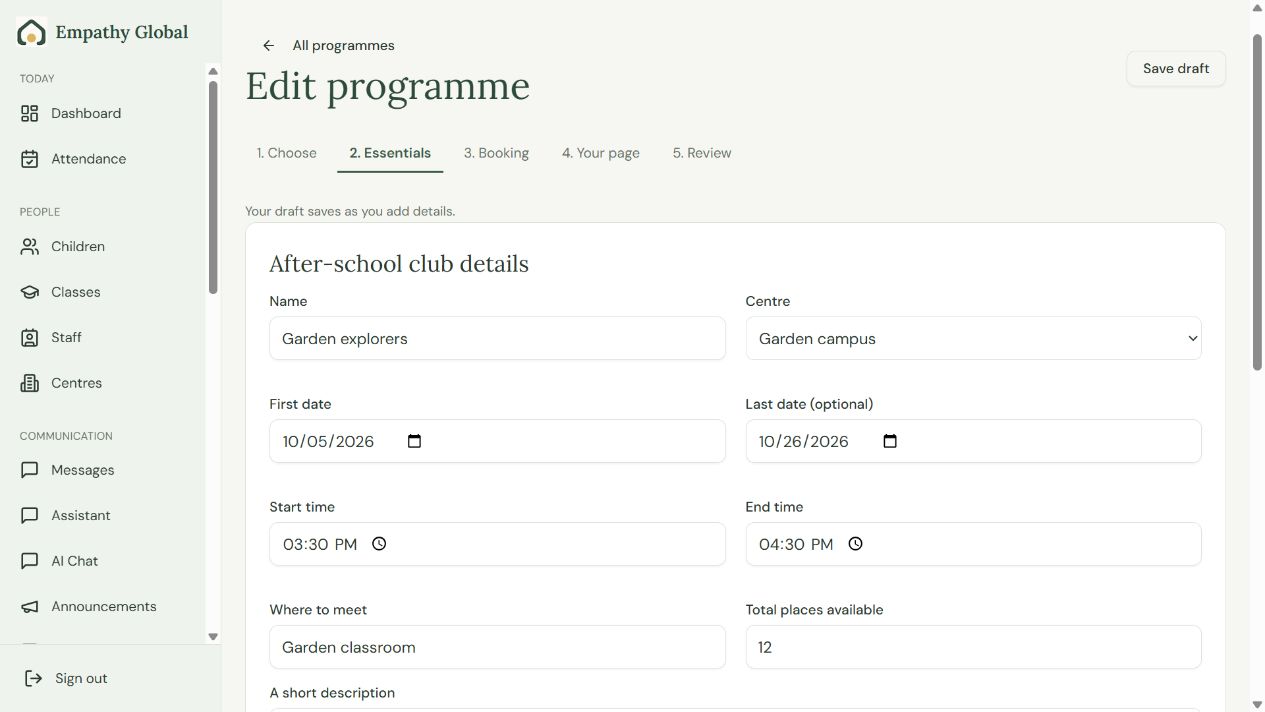
Use a name families will recognise and choose the correct centre.
Set the dates and times
Enter the first and last dates, then the start and end times.
Screen 3 of 13
Set dates, places and the staff who run it
Set places and staff
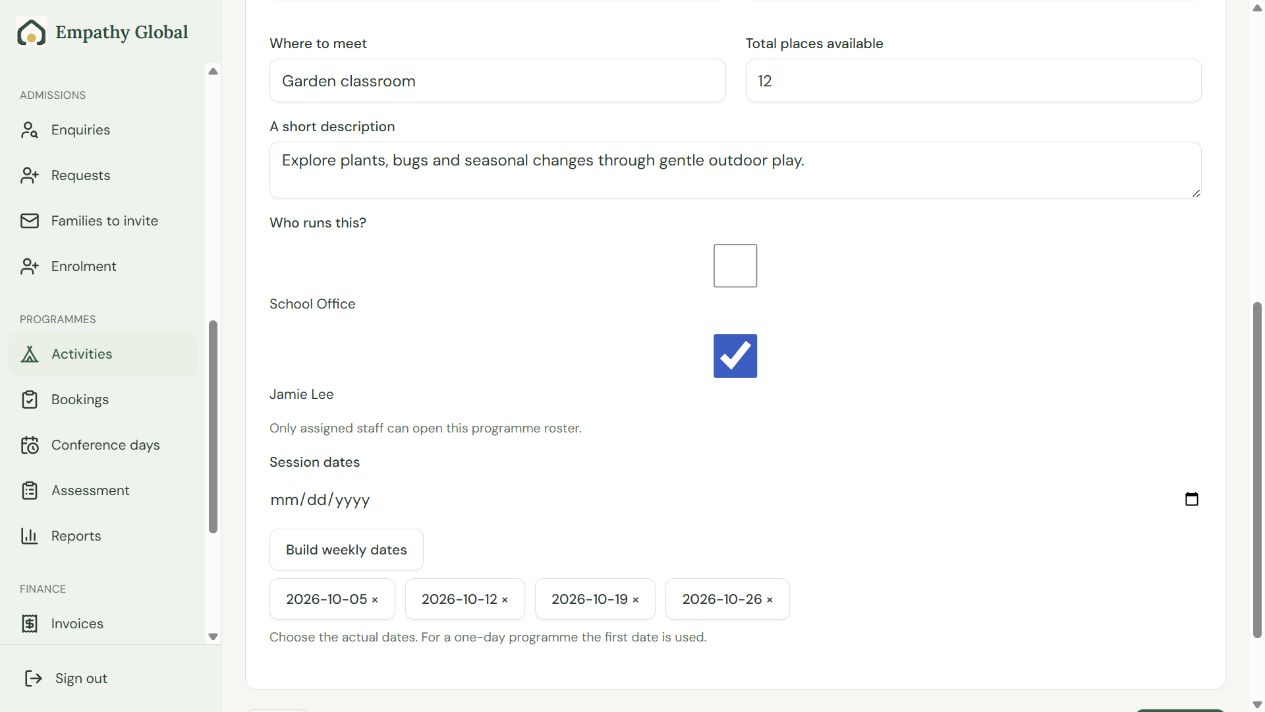
Enter the capacity, meeting place and staff who run the programme.
Choose actual session dates
Build weekly dates if useful, then check each included date before continuing.
Screen 4 of 13
Set the price and how a place is confirmed
Set what the price covers
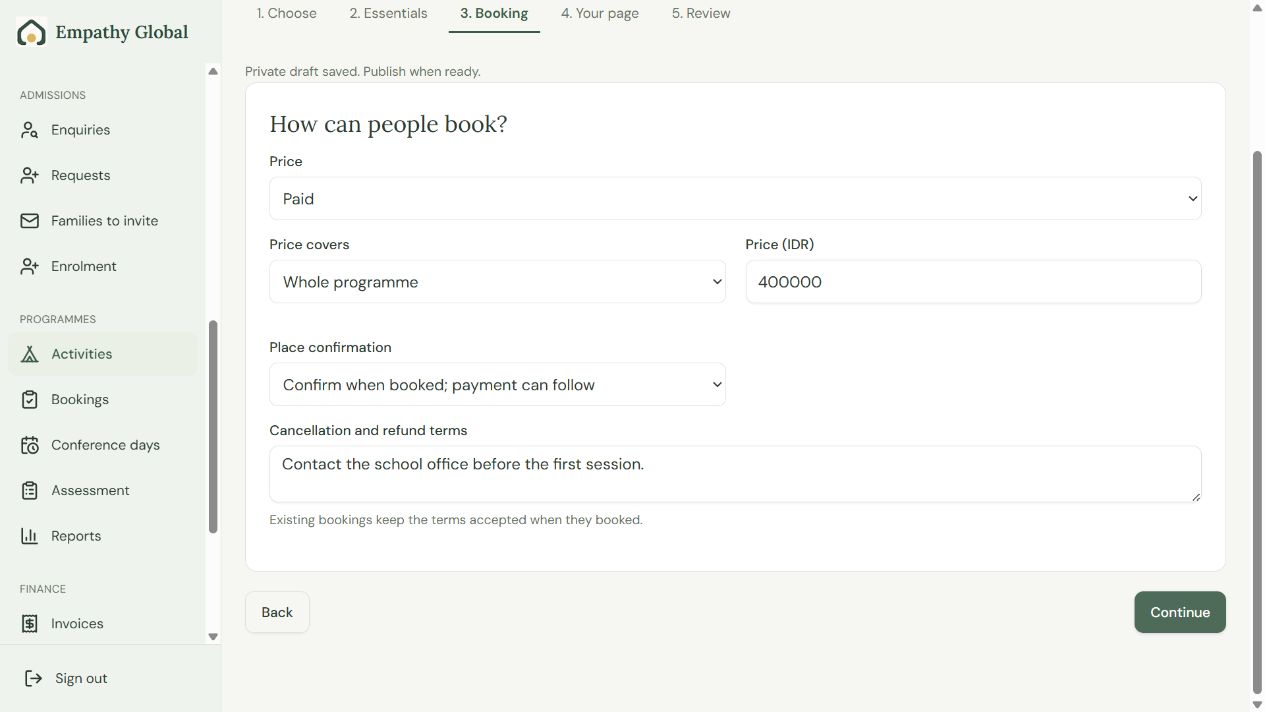
Choose free, paid or register interest, then set the correct programme or session price.
Choose when places are confirmed
Check the confirmation policy and cancellation terms before continuing.
Screen 5 of 13
Prepare the information families will see
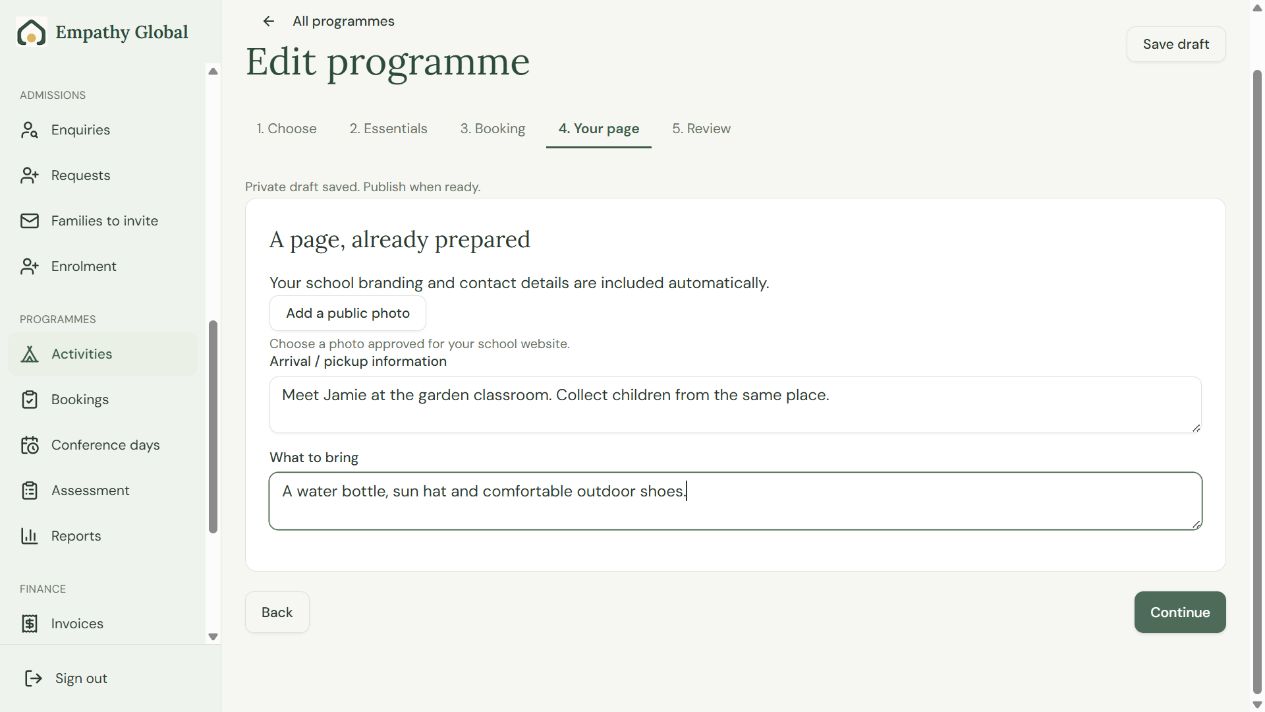
Add practical family information
Explain arrival, pickup and what children should bring.
Review the public content
Use a website-approved photo if you add one, then Continue.
Screen 6 of 13
Review before families can book
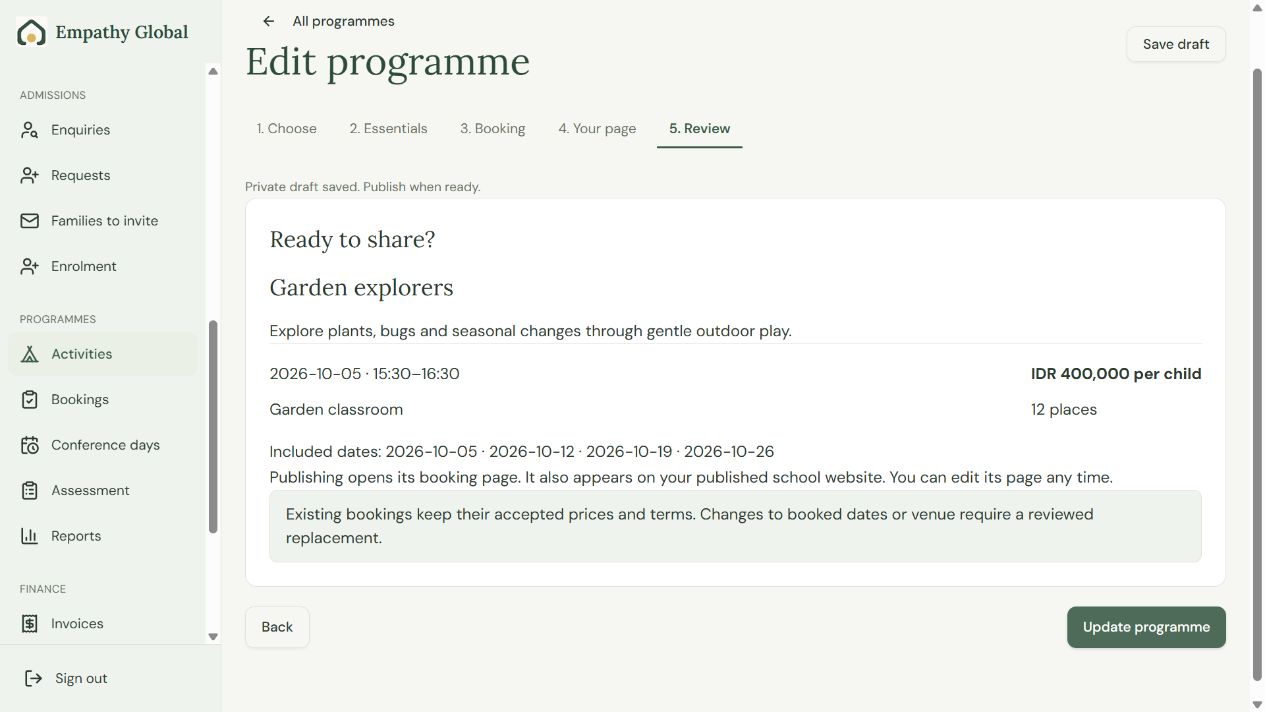
Read the complete offer
Check the dates, venue, price and places before sharing.
Publish when ready
A new programme uses Publish; the example is an existing programme, so it shows Update programme.
Screen 7 of 13
Check the published programme
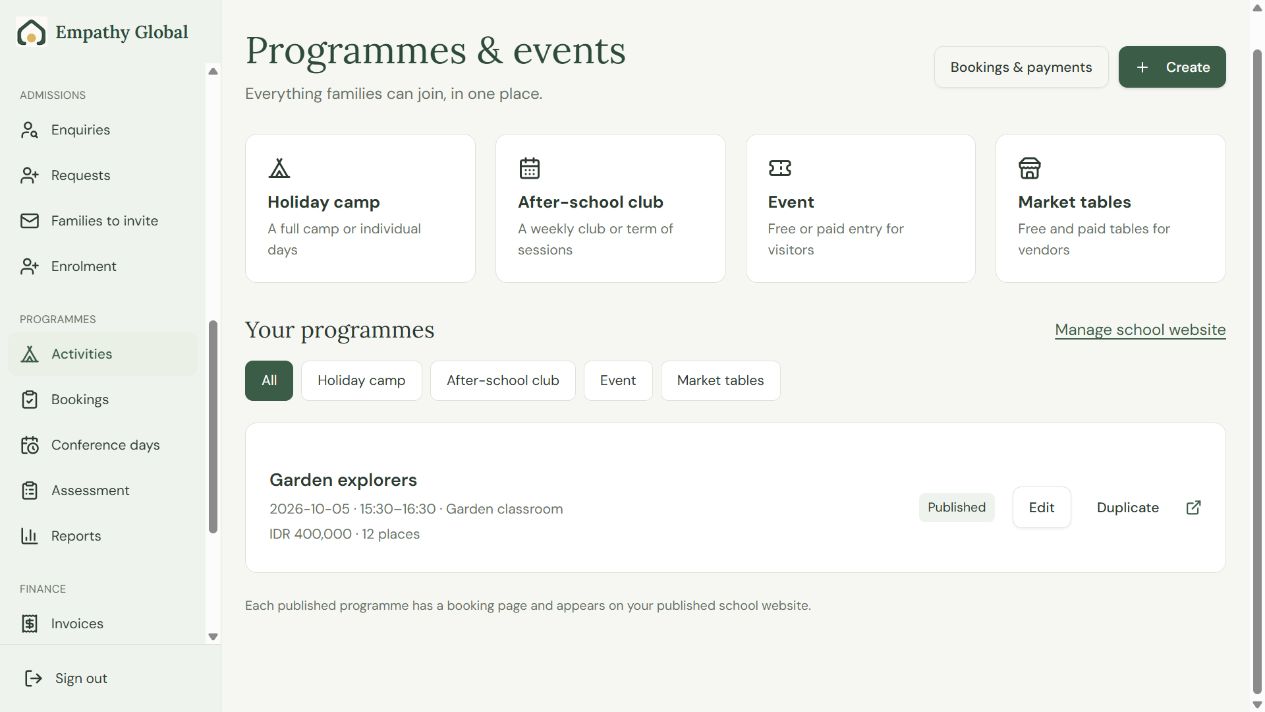
Check the Published label
The programme card should show the saved dates, price and venue.
Open View
Review its booking page before sharing the link with families.
Screen 8 of 13
Find a programme that suits your child
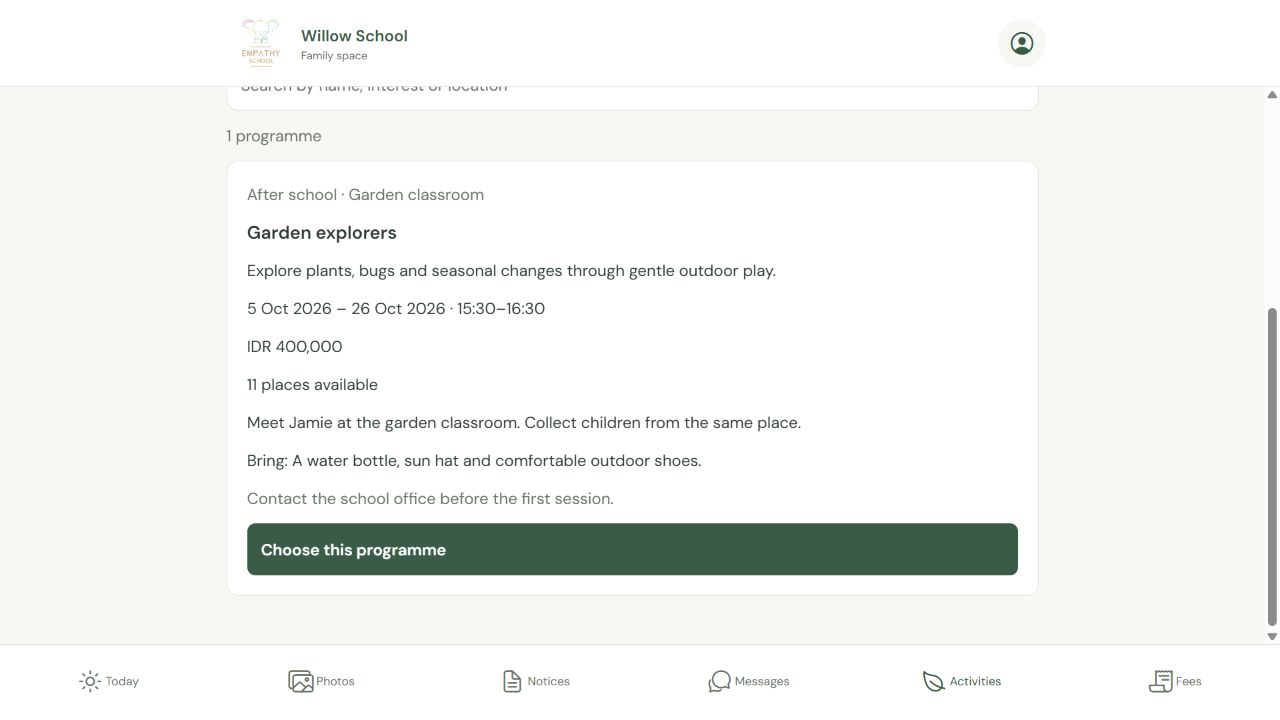
Read the programme details
Check dates, location, price, available places and what to bring.
Choose this programme
Start the booking when it suits your child.
Screen 9 of 13
Choose the child who will attend
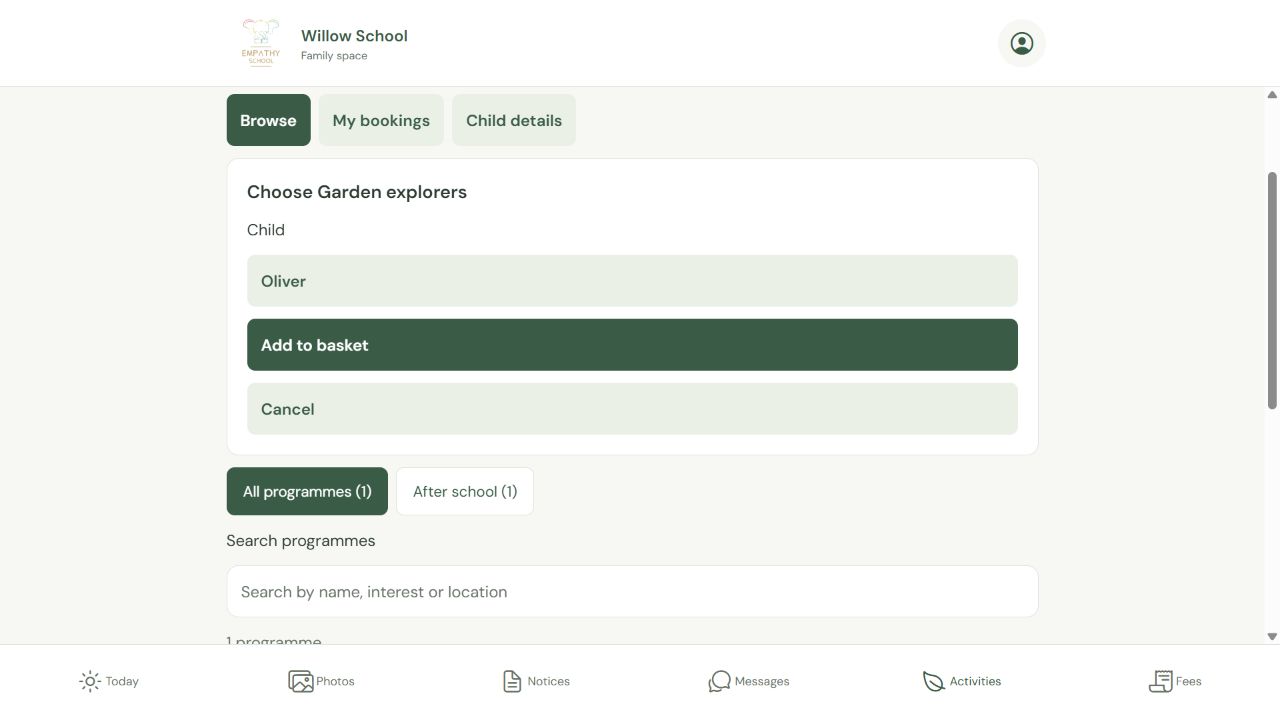
Choose the child
Check who will attend. Select sessions if that programme offers session choices.
Add to basket
Then review the basket’s price and availability.
Screen 10 of 13
Review the price and booking terms
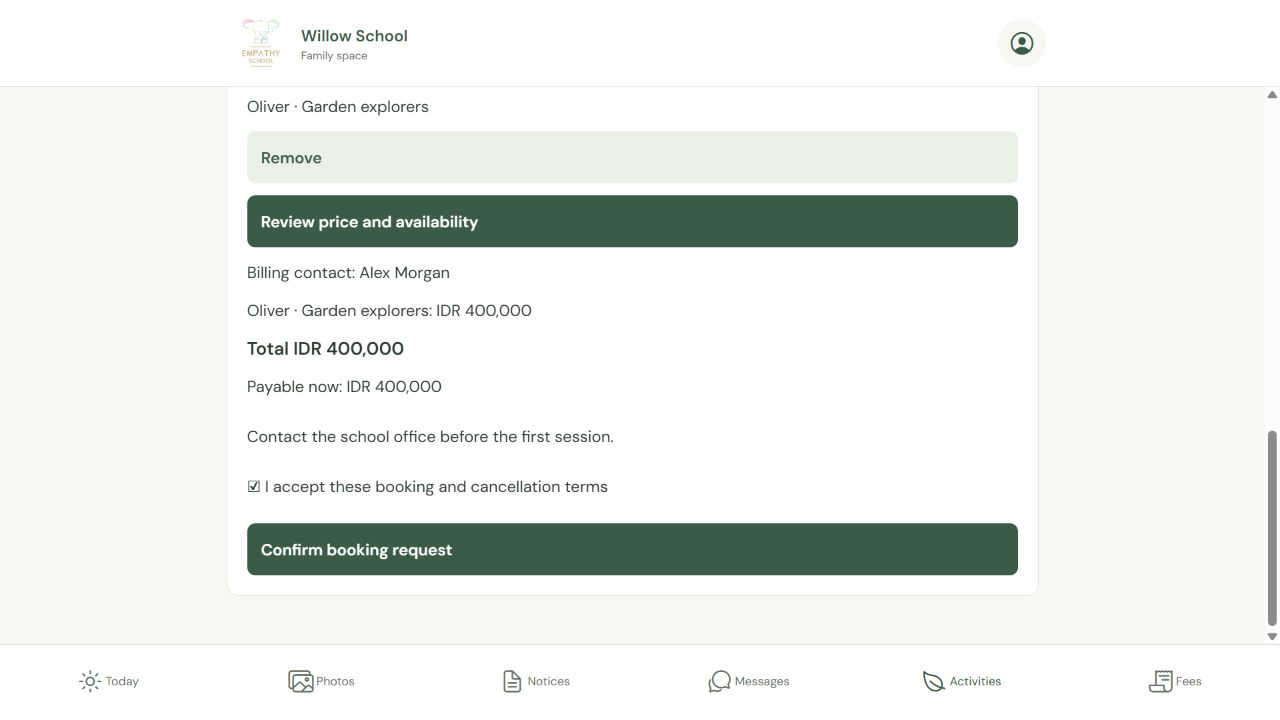
Check the total and terms
Review the child, programme, billing contact and amount payable now.
Confirm your booking request
Accept the terms when you agree, then choose Confirm booking request.
Screen 11 of 13
Check My bookings for the actual place status
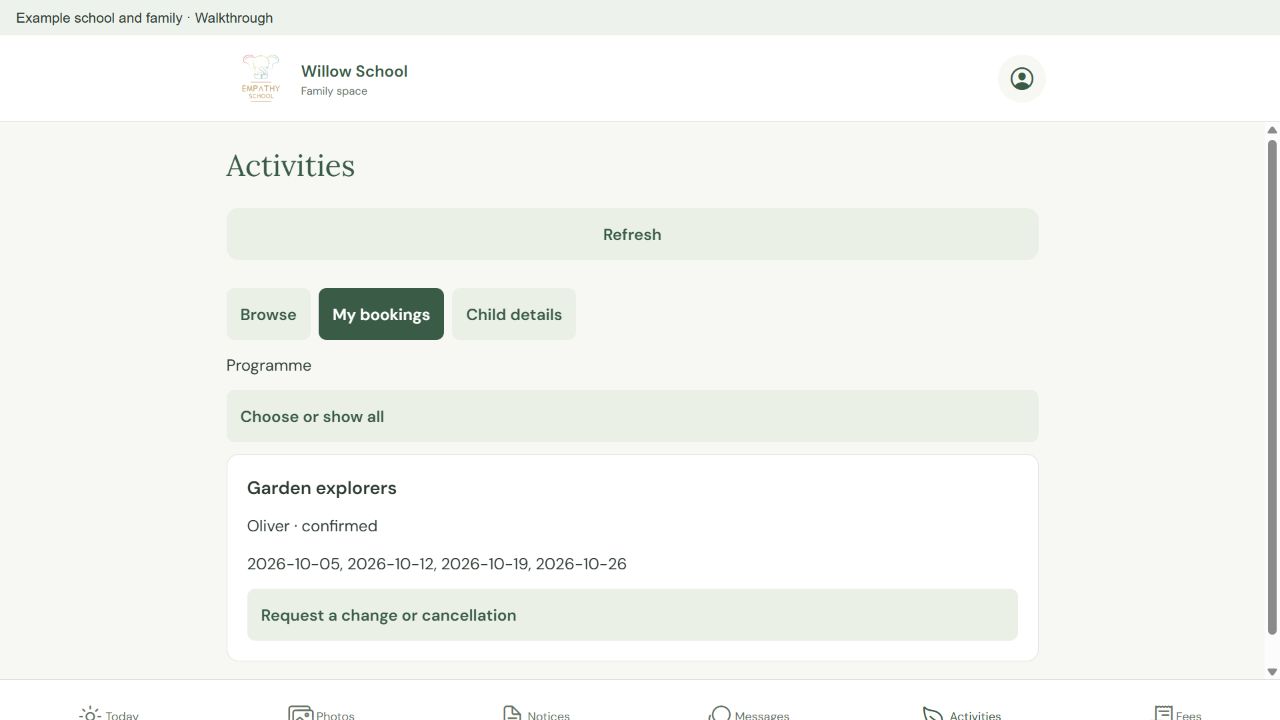
Open My bookings
Check the child, included dates and current place status.
Check Fees when payment is due
A confirmed place and a paid invoice are separate. Follow your school’s payment instructions.
Screen 12 of 13
Find the family’s confirmed booking
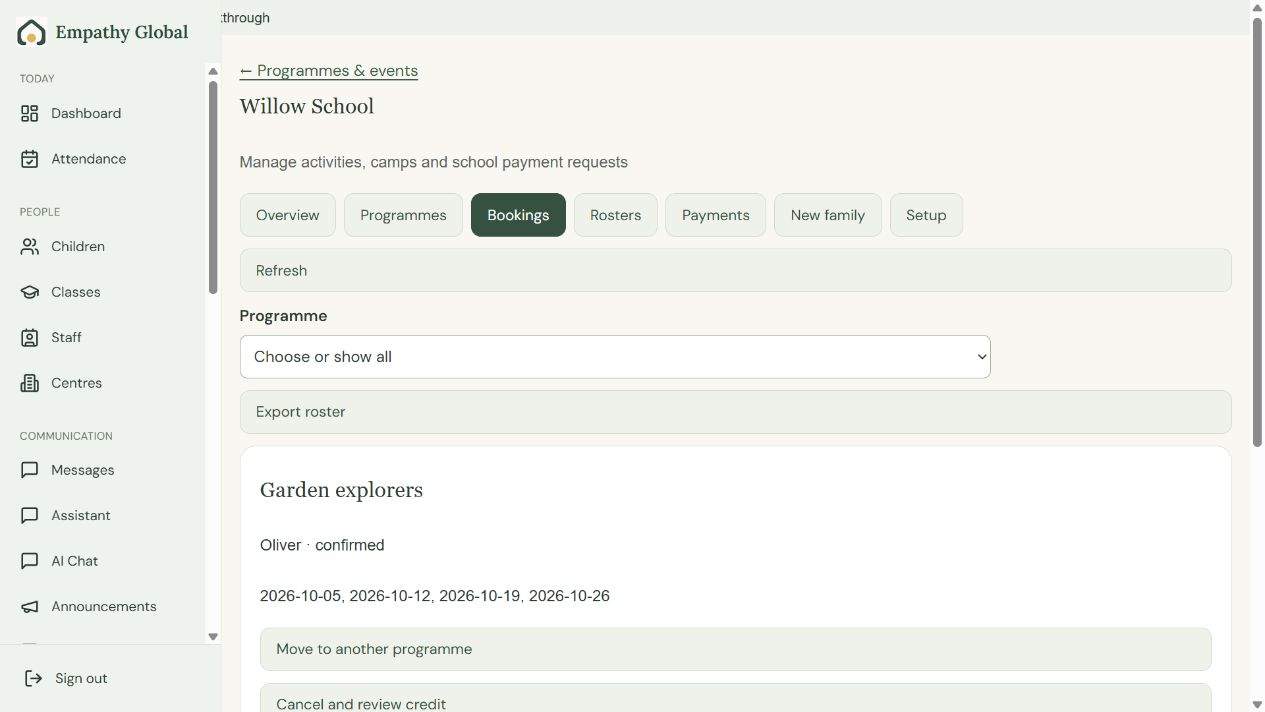
Find the booking
Open Bookings and choose the programme if needed.
Check the child and dates
Use View roster to see each session and its place status.
Screen 13 of 13
Check the child, session and place status
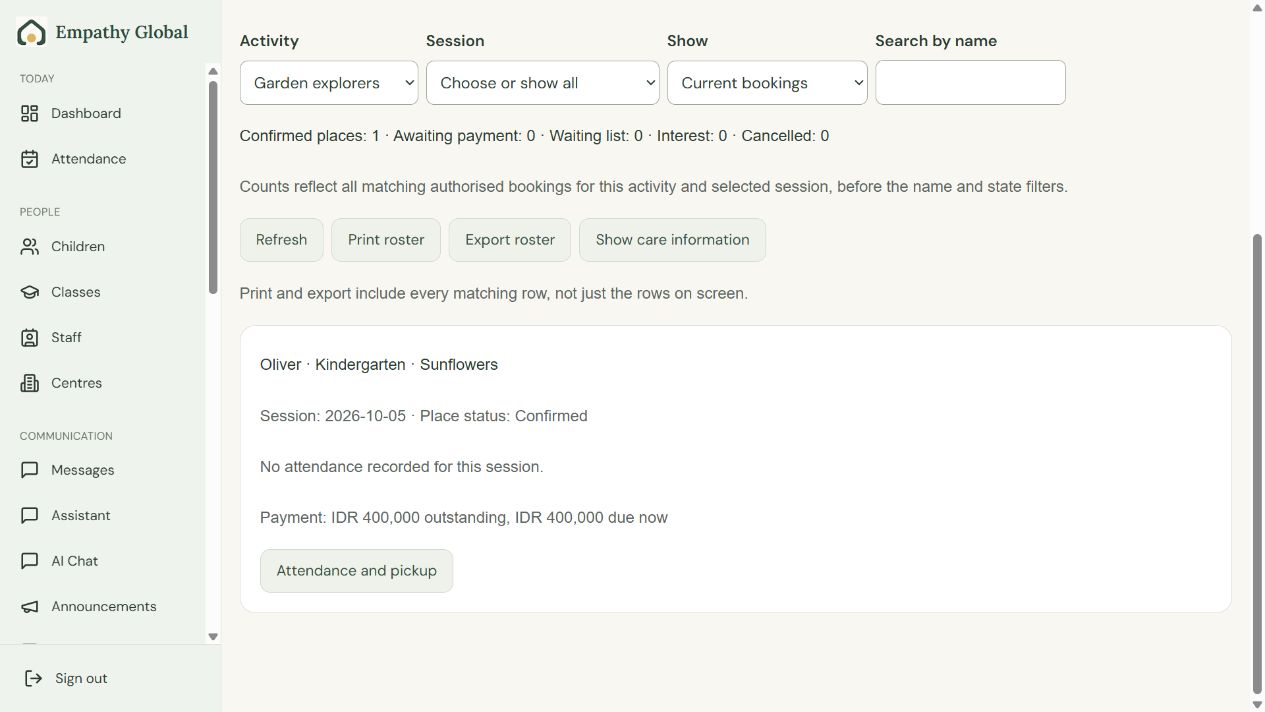
Choose the session
Filter by activity, session and booking state.
Check places and payment separately
The example child has a confirmed place with payment still outstanding.
Check the result
The programme is published, the family can find its booking, and the same child and sessions appear on the school roster.
If something looks different
The programme does not appear
The school must enable programmes and publish the offer. Availability, dates and family eligibility can affect what appears. Ask the office to check the setup.
A family joins partway through the term
The full term price remains the default. The school must explicitly set any supported late-join price or arrange a reviewed adjustment. Do not assume automatic proration.
The place is awaiting payment
Read the place status and payment request separately. Follow the school’s instructions; paying outside the app does not by itself record a receipt.
A family is new to the school
Share the programme’s public booking page only after the school enables new-family registration. The family uses the supported new-family registration route; the school reviews their details in Bookings → New family. Programme registration does not by itself enrol a child into a school class.
Screens show released apps with example school and family records. Instructions checked 13 September 2026. Beacon: 13 September release; Parent 1.1.8; Teacher 2026.09.13.1.